Find what you need
The header search and sidebar follow your account's access and your organisation's enabled features. Team Members see direct menu links; other account types use grouped menus.
Step 1: Search from the header
- Enter at least two characters in the header search bar. Try a topic such as clock out, availability or privacy.
- Choose a result to open its page. Help results search published Knowledgebase article titles, descriptions and content.
- On a keyboard, use the arrow keys to choose a result, Enter to open it and Escape to close the results.
On mobile, results span the screen beneath the header. Team Members' private shift and timesheet results are limited to their own records. Management results follow their permissions and the selected organisation.
Step 2: Use your sidebar
- Select the menu button in the header to open or close the sidebar.
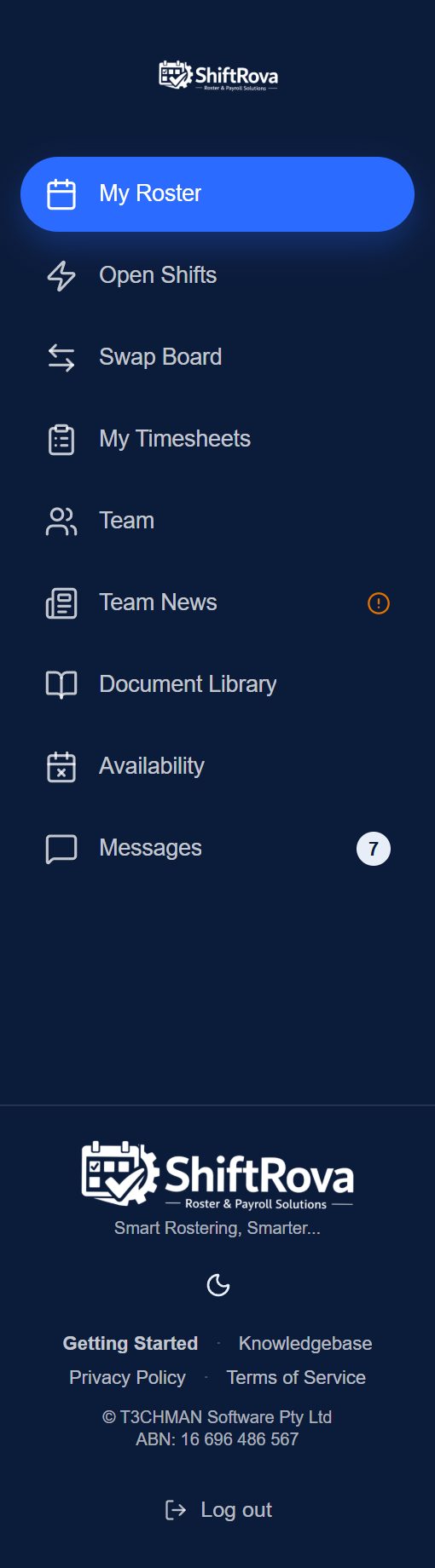
- Team Members can select links directly, including My Roster, My Timesheets, Availability, Team News and Messages.
- Managers and Admins can expand groups such as Roster and Team to find their pages.
- Find Knowledgebase, Getting Started, Privacy Policy and Terms of Service at the bottom of the sidebar.
Step 3: Change light or dark mode
- Open the sidebar and find the sun or moon button near the bottom.
- Select it to switch between light and dark mode. Your preference is saved to your account.
If a page is missing
A link may be unavailable because of your role, Page Access permissions, an organisation-wide feature setting, or your device. Ask your Organisation Admin if you need access. If saving a theme preference fails, the theme still changes on that device and a message explains the save failure.
See Understanding User Roles & Permissions for account differences.