
Check saved shift details and history before editing
Managers, Organisation Admins and Super Admins with roster access can review an existing shift in the selected organisation. This is part of Team Roster / Manage Roster and Mobile Roster access, not a separate optional module. Employees and Payroll Officers do not receive this management history.
1. Open the correct saved shift
- Check the active organisation, location and week.
- Click or tap the shift card to open Edit Shift. On mobile, choose its day first.
- The editor checks the saved version. Scroll down to Shift history, below the publication controls. History appears for existing shifts, not an unsaved new shift.
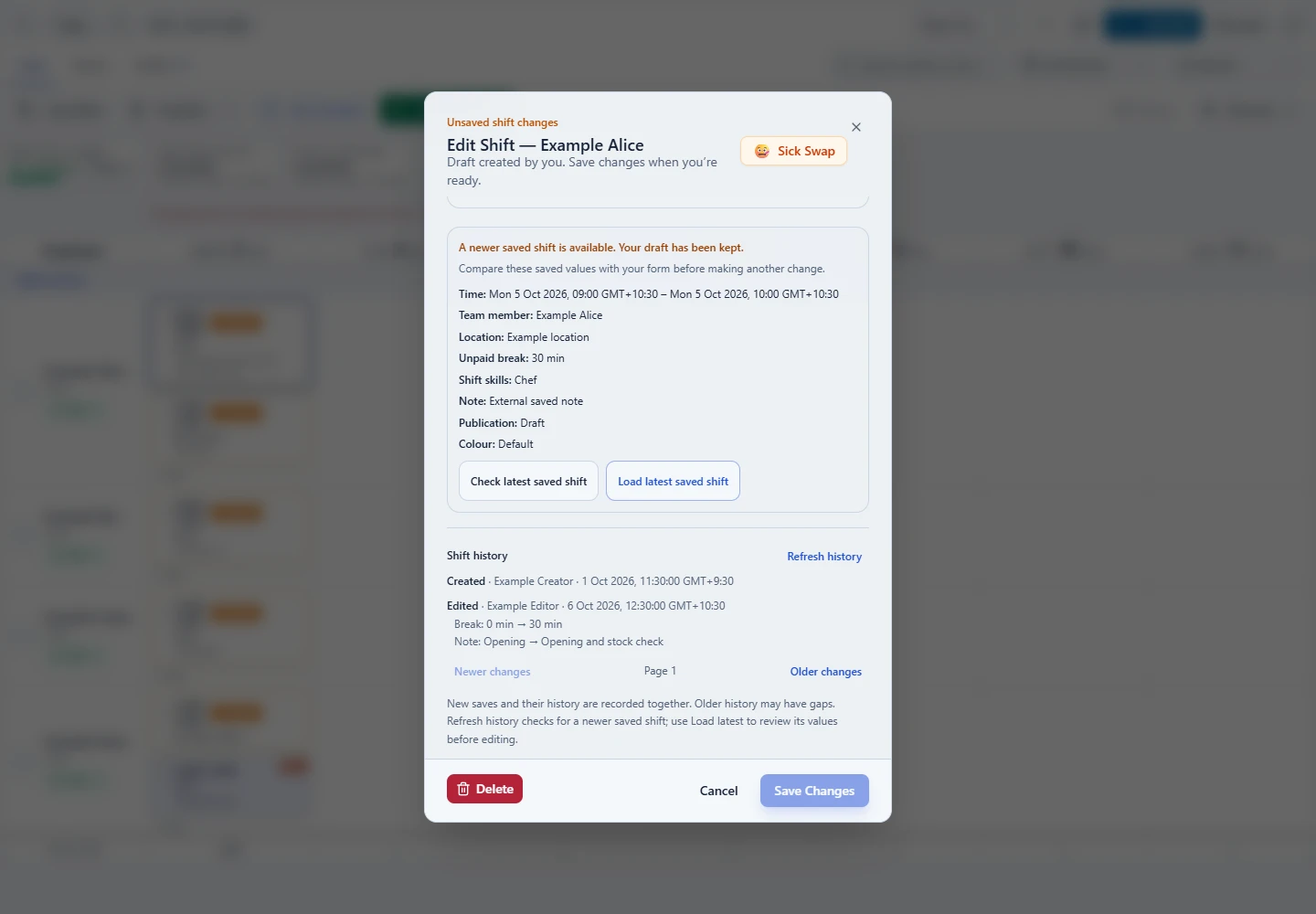
2. Read creation details and recorded changes
- The Created line uses the original creation event when available. Missing historical attribution is labelled; do not guess an author.
- Read each action, person and timestamp in the organisation’s timezone. Changes include recorded before-and-after times, break minutes, shift skills, team member, location and notes.
- Use Older changes and Newer changes to move through bounded pages of up to 20 changes.
- New saved roster and timesheet changes retain their history together. Copy Week, templates and automatic scheduling record the shifts they actually change; automatic assignment keeps the original creator.
3. Check the latest version without losing your draft
- Choose Refresh history for recent activity and a saved-version check, or Check latest saved shift to check only the saved details. Checking does not replace your unsaved form.
- If A newer saved shift is available. Your draft has been kept. appears, compare the saved time, team member, location, break, skills, note and publication status with your form. Saving is paused until the newer version has been reviewed.
- Choose Load latest saved shift to put the saved values into the form. Expand Previous draft kept for comparison to see the listed former values, then reapply only the changes still needed. This comparison keeps ordinary roster fields and colour; private patrol-route edits and stop notes are not copied into it. Review those private changes before choosing to load the latest shift.
- If the shift moved to another week, choose Open latest roster. Open the shift there and review its current details.
- Check the date, team member, breaks, skills and publication status, then choose Save Changes. The save checks for newer changes again. A conflict keeps your draft and asks you to review the current saved shift.
4. Understand quick changes and Undo
Desktop moves, resizing, colour changes and assignment also use the shift version that was reviewed. Supported desktop Undo actions check their saved versions; they do not overwrite a newer edit. A failed Undo keeps the action available and shows the conflict. Open and review the shift before deciding what to change. A bulk Undo leaves every selected shift unchanged if one has changed.
5. Recover from loading errors and respect history limits
- If a saved-version check fails or times out, the draft stays in the form. Choose Retry saved shift check. Saving waits for a valid checked version.
- If only history cannot load, use Refresh history to retry. A history error alone does not block saving a successfully checked current version.
- Older records can have gaps or batch-only history. New recording does not invent older events, actors or creation details.
- Private patrol-stop notes and specialist operational records remain in their authorised workspaces. Disabling an optional module preserves its records without granting access through roster history.
- Roster changes affect planned shifts. Actual attendance, timesheet approvals and payroll remain separate.