
Platform Super Admin review only
Open Super Admin Portal → Search Insights to find topics people search for and prioritise missing guides or navigation. Organisation Admins, Managers and Team Members cannot view this report. It contains aggregated demand signals rather than individual searcher histories.
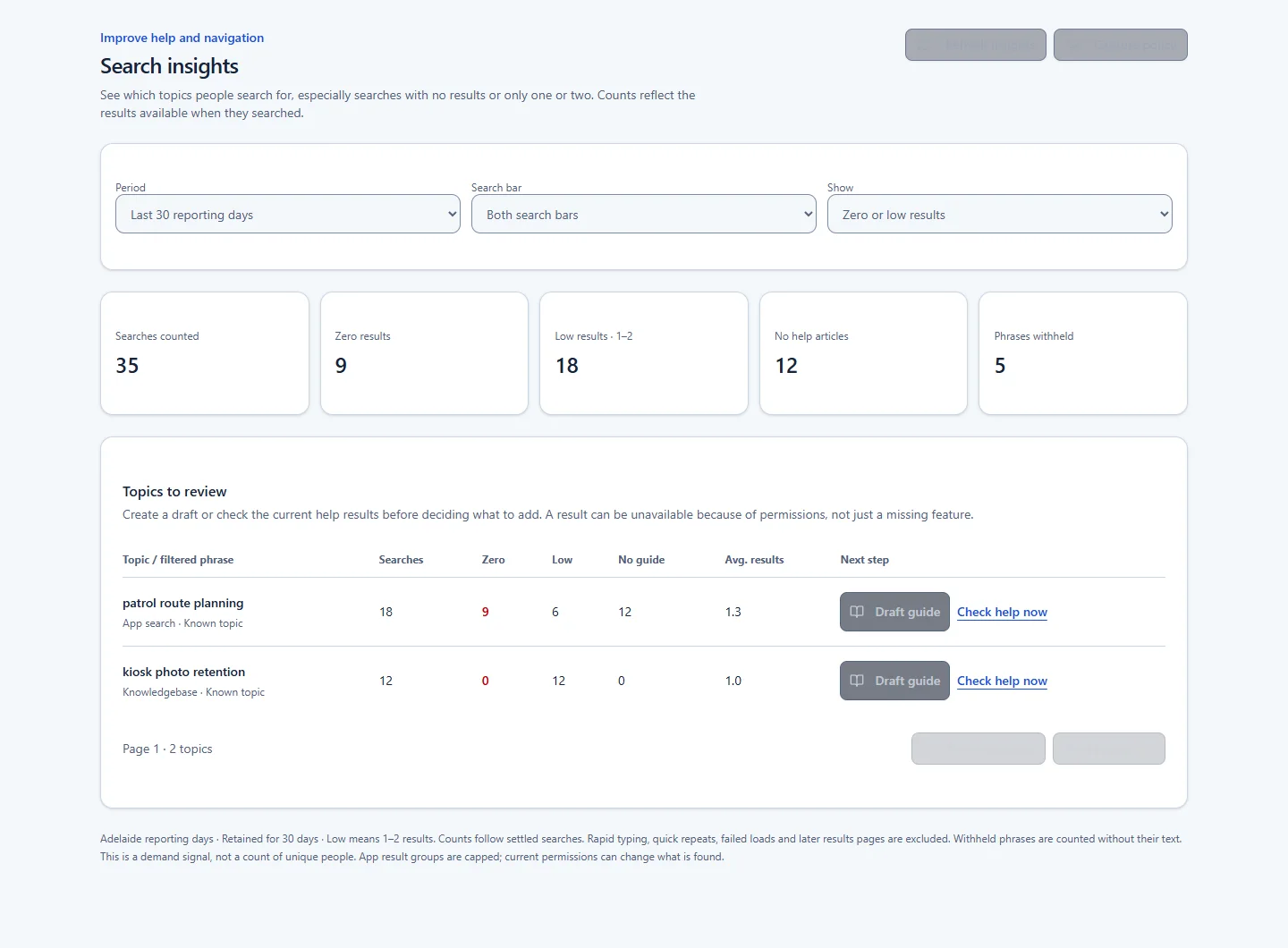
1. Find topics with gaps
- Choose the last 7 or 30 reporting days. Reporting days use Australia/Adelaide.
- Choose Both search bars, Public knowledgebase or App header.
- Start with Zero or low results. Zero means no results; low means one or two. Use No help articles to find searches that may have found app links without a guide.
- Compare Searches, Zero, Low and No guide counts. Summary cards describe the selected period and source; the result filter applies to the topic list.
- Use Previous topics or Next topics for the remaining list and Refresh insights for a new read.
App groups are capped and reflect the searcher's available results at that time. Permissions, module availability or changing content can explain a gap. Counts follow settled searches or selected results, exclude failed loads and later result pages, and suppress quick repeats. They are not counts of unique people, proof of demand, or a complete traffic ledger. Collection starts after release; no earlier search history is reconstructed.
2. Turn a useful search into a guide
- Select Check help now to review the current public Knowledgebase.
- Confirm the feature actually exists, its correct name and who can use it. A missing article does not prove a missing feature.
- Select Draft guide to open the Knowledgebase editor with a suggested title. This action alone does not create or publish an article.
- Write a clear summary and numbered workflow, include access requirements and related guides, and review any screenshot for fictional data.
- Keep Publish immediately unchecked to save a draft. Publish deliberately after review, then search the feature name and a few natural task phrases.
3. Manage filtered unmatched capture
- Open Capture policy.
- Review Also capture filtered unmatched phrases. Enabling it helps identify topics outside the existing feature/help vocabulary. The initial release enables this following the platform owner's explicit choice.
- Choose the policy and select Save capture policy. A concurrent policy or access change requires a fresh read before saving.
- Turn it off to stop new unmatched-phrase capture. Recognised topics and phrase-free withheld counts continue; retained unmatched history expires normally.
Search phrases are encrypted and retained for the current and previous 29 Adelaide reporting days. Searches matching private records and common identifier patterns are withheld; filters cannot catch every personal detail. Searcher account, organisation, session and IP identifiers are not attached to phrase reports. Short-lived signed receipts deduplicate submissions; separate hashed network counters limit abuse. Policy changes have an immutable operator audit. Phrase counts are platform operations data and are not restored through organisation backups.
4. Handle unavailable insights
If loading fails, use Retry insights. An unavailable report does not mean there were no searches. If the platform encryption key is missing, capture stops while ordinary search continues. Withheld phrases appear only as counts, and unavailable encrypted phrases cannot be used as draft titles.
Related: Search features, settings and help · Recent feature guides.