
Review a previously submitted platform safety case
New workplace reports go to eligible organisation admins. For the current inbox and reporting controls, see the workplace reporting guide. The steps below apply to existing platform safety cases.
Who can act: platform Super Admin operators with current platform authority. Organisation admins and managers cannot use these moderation actions. This guide describes the workflow; reading an article does not grant access. Use only the information needed to investigate the report and follow the platform's support and privacy procedures.
1. Open the report and its authorised context
- Open Super Admin → Support & safety reports.
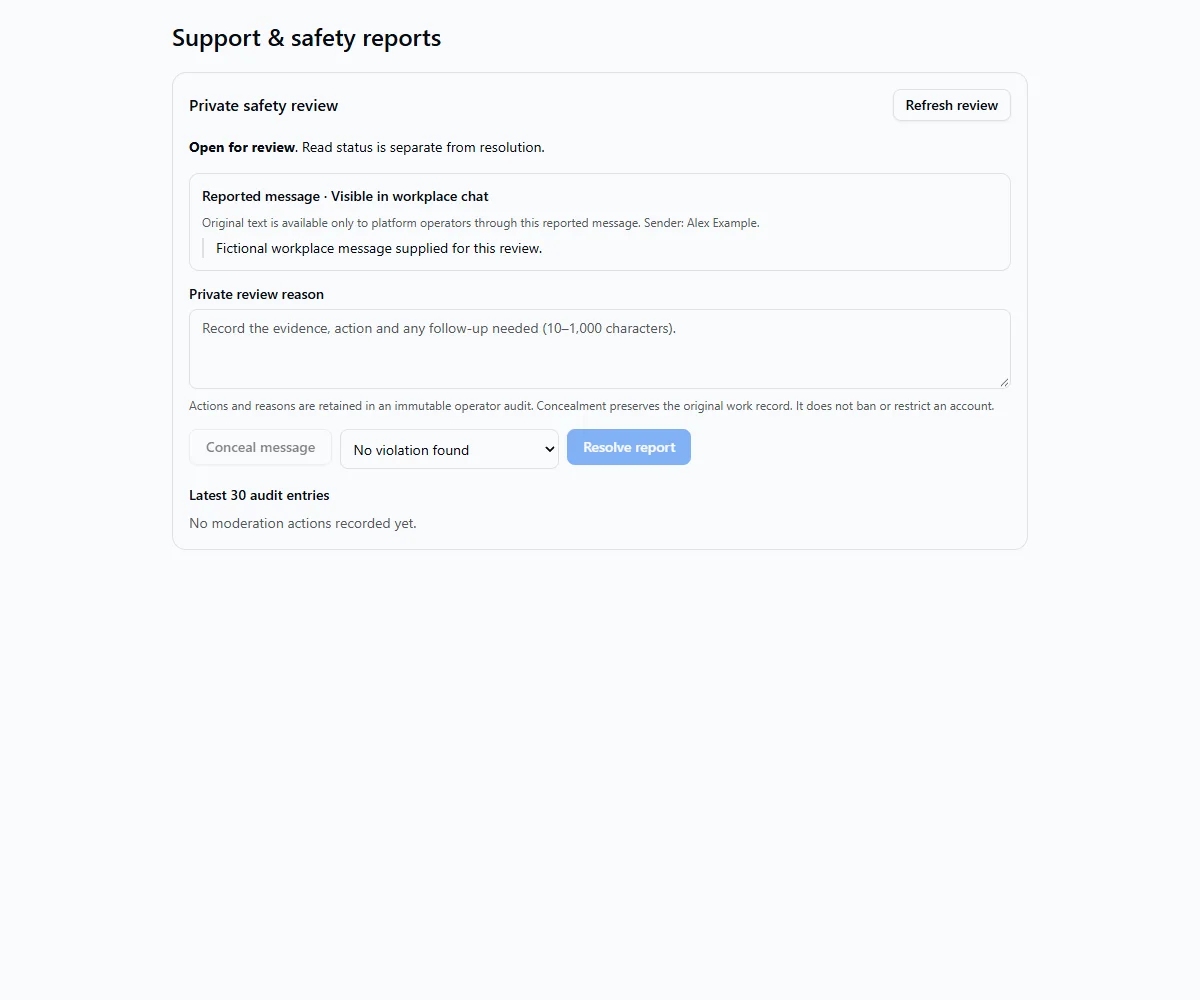
- Expand the safety inquiry and open Private safety review.
- Check Open for review or Resolved, the report description and any selected message context. Only a message explicitly linked in the report can be reviewed through that case. A general concern or arbitrary pasted link does not open unrelated private records.
- Select Refresh review if another operator may have changed the case.
2. Conceal or restore the reported message
- The case must be open. If resolved, use Reopen report first with a reason.
- Enter a Private review reason of 10–1,000 characters. Explain the relevant decision without unnecessary personal detail.
- Choose Conceal message to remove the reported message from ordinary chat display, or Restore message to make a previously concealed message visible again.
- Confirm the returned state and audit entry. If the case/message revision changed, refresh and review before attempting another action.
Concealment is reversible and keeps the original ChatMessage record. It does not ban the sender, delete workplace history, scan other uploads or recall already delivered OS notifications. New chat notifications use generic previews, and current message visibility is checked when content is accessed.
3. Record an outcome and resolve
- Choose the applicable outcome: No violation found, Insufficient evidence, Referred for follow-up or Reported message concealed.
- Use the concealed outcome only after that reported message is actually concealed.
- Enter the private reason and choose Resolve report. Confirm that the case reads Resolved.
- If more work is needed later, enter a reason and select Reopen report.
Marking an inquiry read/unread is separate from resolving the safety case. It does not record a moderation outcome. Coordinate any necessary reporter follow-up through the platform's authorised support process; submitting a report does not automatically send its content by email.
4. Read the audit and handle uncertainty
The review shows the latest 30 immutable action entries, with operator, time, action, reason and applicable outcome. The original chat and case/audit metadata are retained; this workflow does not promise a fixed automatic purge period. Duplicate request protection prevents a repeated confirmed action from being applied twice. After an uncertain response, refresh the review to inspect the actual state before taking a different action. Revoked or stale platform authority must be refreshed by signing in again.
The severe-abuse filter applies narrowly to new chat; it is not a replacement for case review or a scanner for all files. Related: Report a message or block direct contact · Recover an app connection · Personal-account deletion.