
Open the Resume Library
When Resume Library is enabled for an organisation, its Managers and Org Admins can open Manage → Resumes. Super Admins can open it from the same menu after selecting that organisation. The feature starts off, and Super Admin controls which organisations have access.
Add a resume
- Choose Add resume and enter the candidate name, role and date submitted. Add job-related notes if needed.
- Select or create categories, such as the role or a hiring round. Rate suitability from one to five stars, or leave it unrated.
- Choose a PDF or add photos from your device. Use Take photo for paper pages and repeat for each page. Use the arrows to arrange new attachments before saving.
- Choose Save resume. If an upload is interrupted, reopen the draft to finish it.
Shortlist by role and print
Search for a candidate or role. Select a category and, if helpful, a minimum rating. Highest rated puts reviewed candidates first. You can also sort by submission date or candidate name.
Open a candidate to view a PDF in your browser or step through each photo. Use Print photos to print the photographed pages in order. PDFs retain their original quality. Photos are lightly compressed for legible review and print.
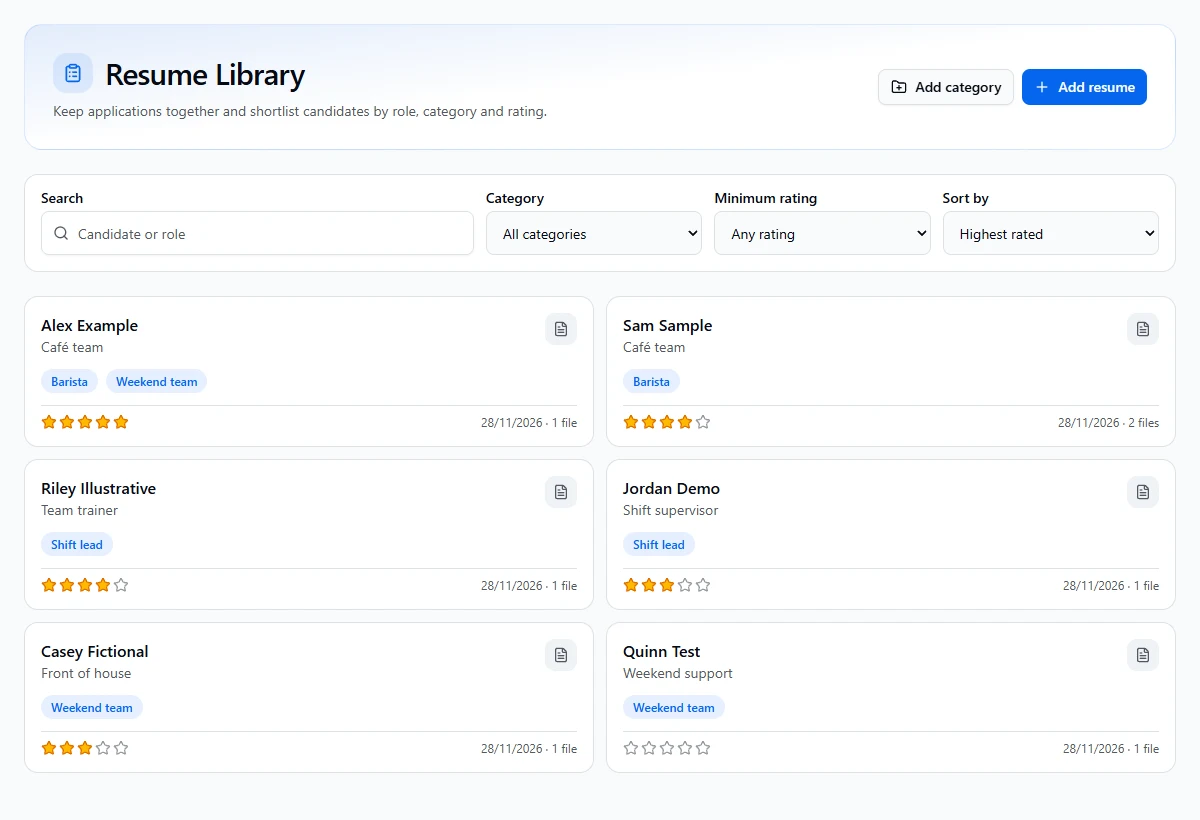
Manage candidate records
Open the resume to edit details or delete a record you no longer need. Deleting it immediately removes it from the library and queues its private files for cleanup. Use your organisation’s recruitment and retention process when deciding what to keep.