
Keep operational context beside your roster
Site Instructions & Acknowledgements, Qualification Checks, Coverage Alerts and Incidents & Handovers are independently available across industries. Multi-location Runs and Private Shift Notes can also be granted in supported shift and service industries. They use the same underlying records as the existing Security tools. Security retains its familiar workspace and post wording; other industries use Operations Workspace. Enable only the tools your team needs through Super Admin.
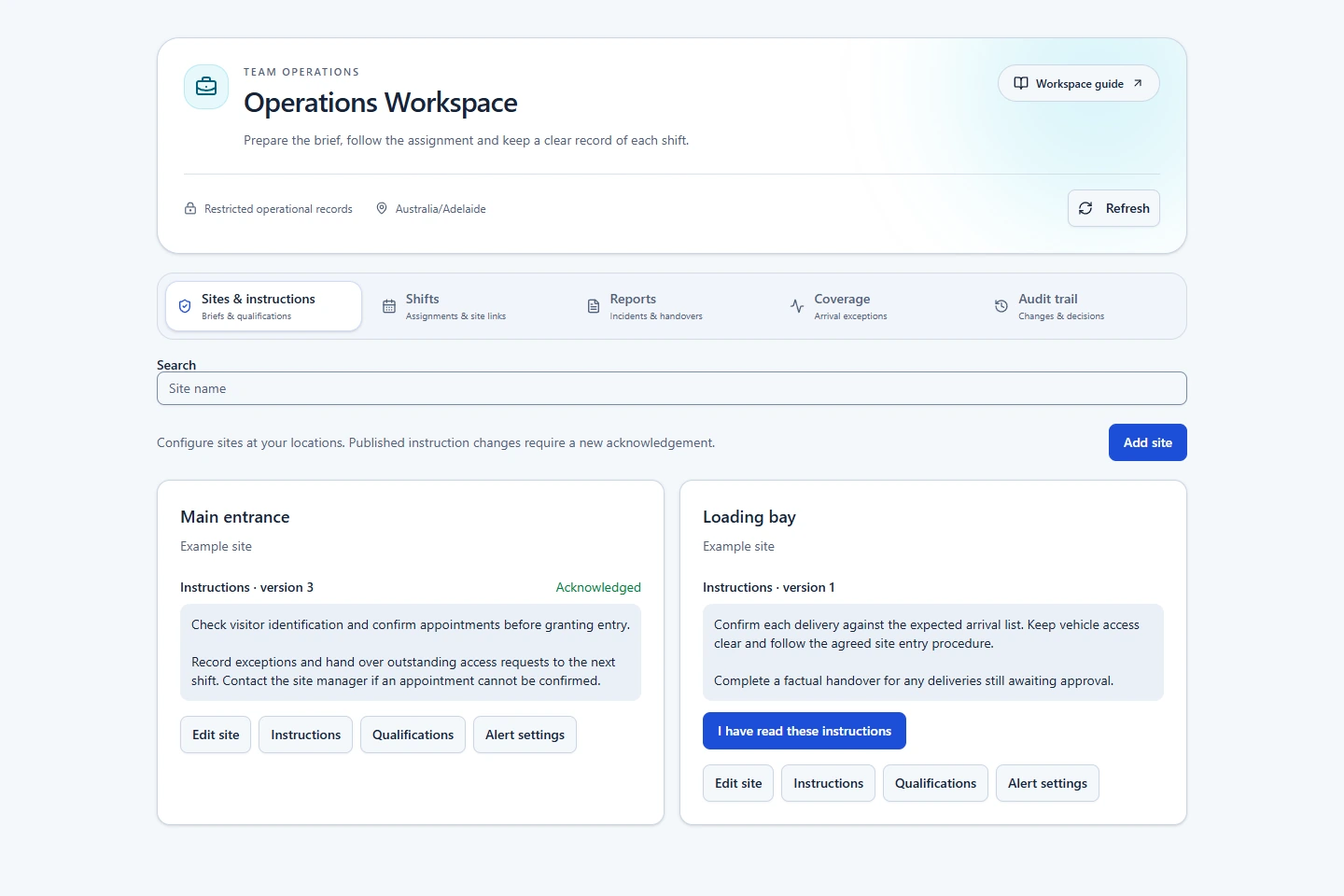
Prepare a site and its instructions
- Open Operations Workspace → Sites & instructions. In a Security organisation, open Security Workspace → Posts & instructions.
- Select Add site, choose the existing location and enter a clear Site name, such as Reception or Loading bay, then save.
- Select Instructions, enter the current brief and choose Publish new version. A new version keeps the previous version and requires a fresh acknowledgement.
- Use Shifts to link the site to the appropriate roster shifts. Staff use I have read these instructions to acknowledge the current brief.
Check qualifications before assignment
- Maintain and verify the relevant employee records in Compliance.
- Choose the required verified Compliance records for the work point.
- Select blocking checks or visible warnings and review results when assigning shifts.
Checks consider the shift's finish. Assigning a work skill is separate from verifying a qualification. Managers remain responsible for reviewing suitability and any permitted warning override.
Follow up missing arrivals
- Enable the separate coverage feature and configure alert settings for the work point.
- Set the grace period and an authorised escalation recipient.
- Review coverage exceptions for published shifts with no assignment or no linked clock-in.
Alerts use in-app notifications and push where available. They cover shift starts, not continuous tracking, lone-worker safety monitoring or emergency dispatch.
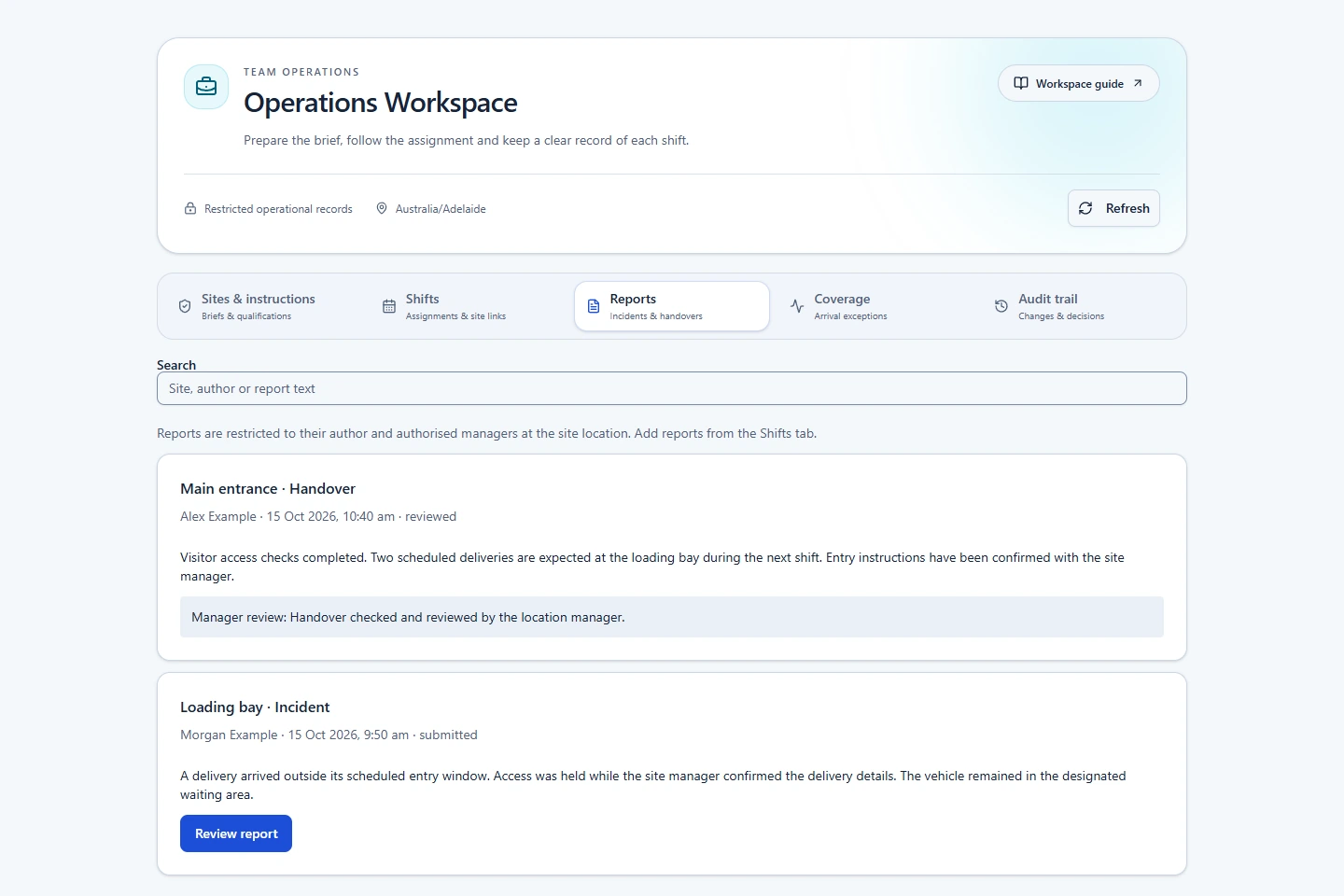
Record and review incidents or handovers
- Workers open their assigned published shift and record factual incident or handover details.
- Authorised location managers and organisation admins review the submission or return it with a correction note.
- The author corrects a returned report and resubmits it. Review the audit trail when checking earlier changes.
Reports are private to their author and authorised management. Keep sensitive clinical information and specialist regulated records in the appropriate dedicated systems. Disabling a tool retains its history and closes access.
Plan multi-location work and keep private notes
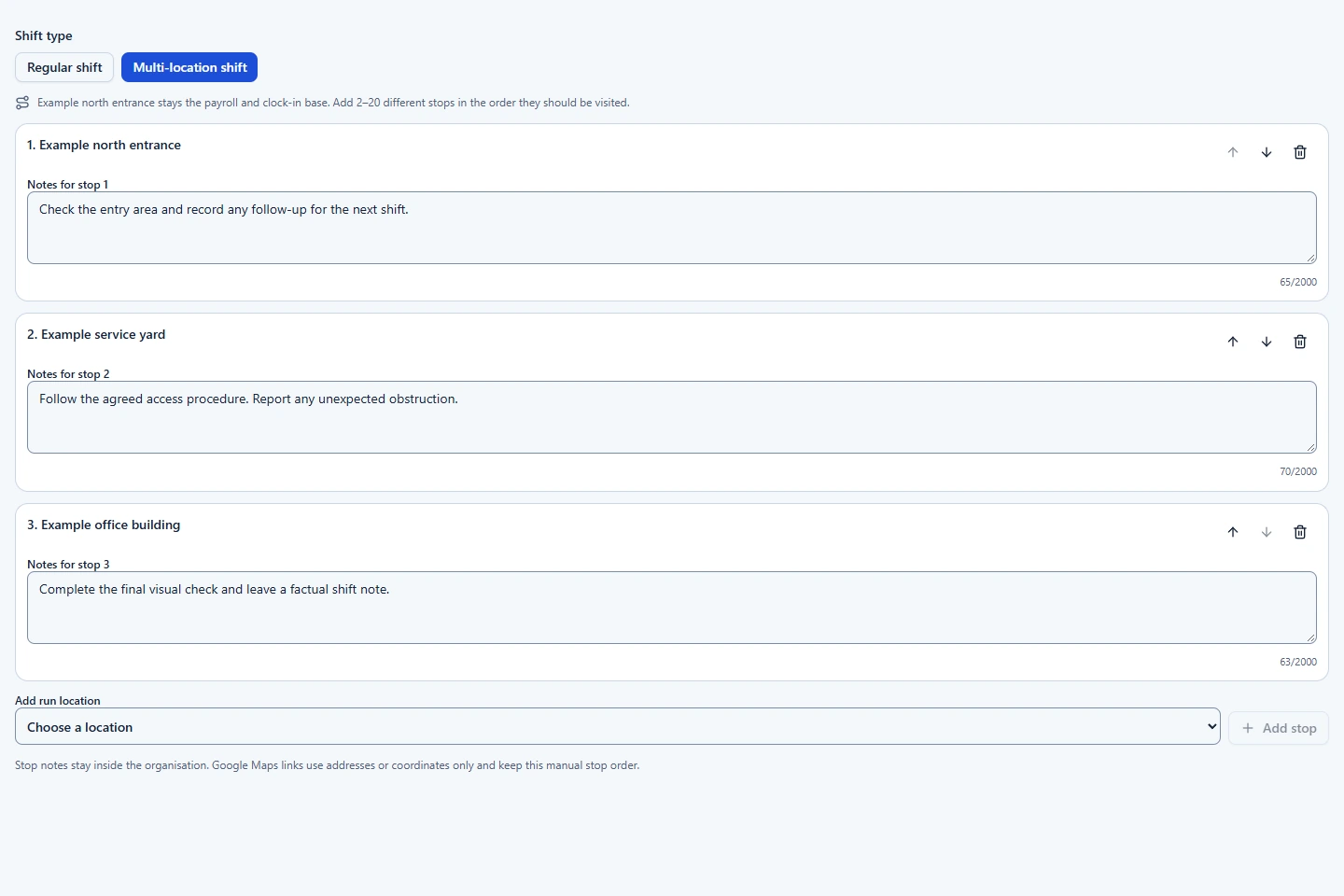
- Where Multi-location Runs is available, add a roster shift, choose Multi-location shift and select 2–20 active locations.
- Arrange the visit order and add instructions for each stop. Keep the primary roster location for clocking and payroll; map links use only addresses or coordinates.
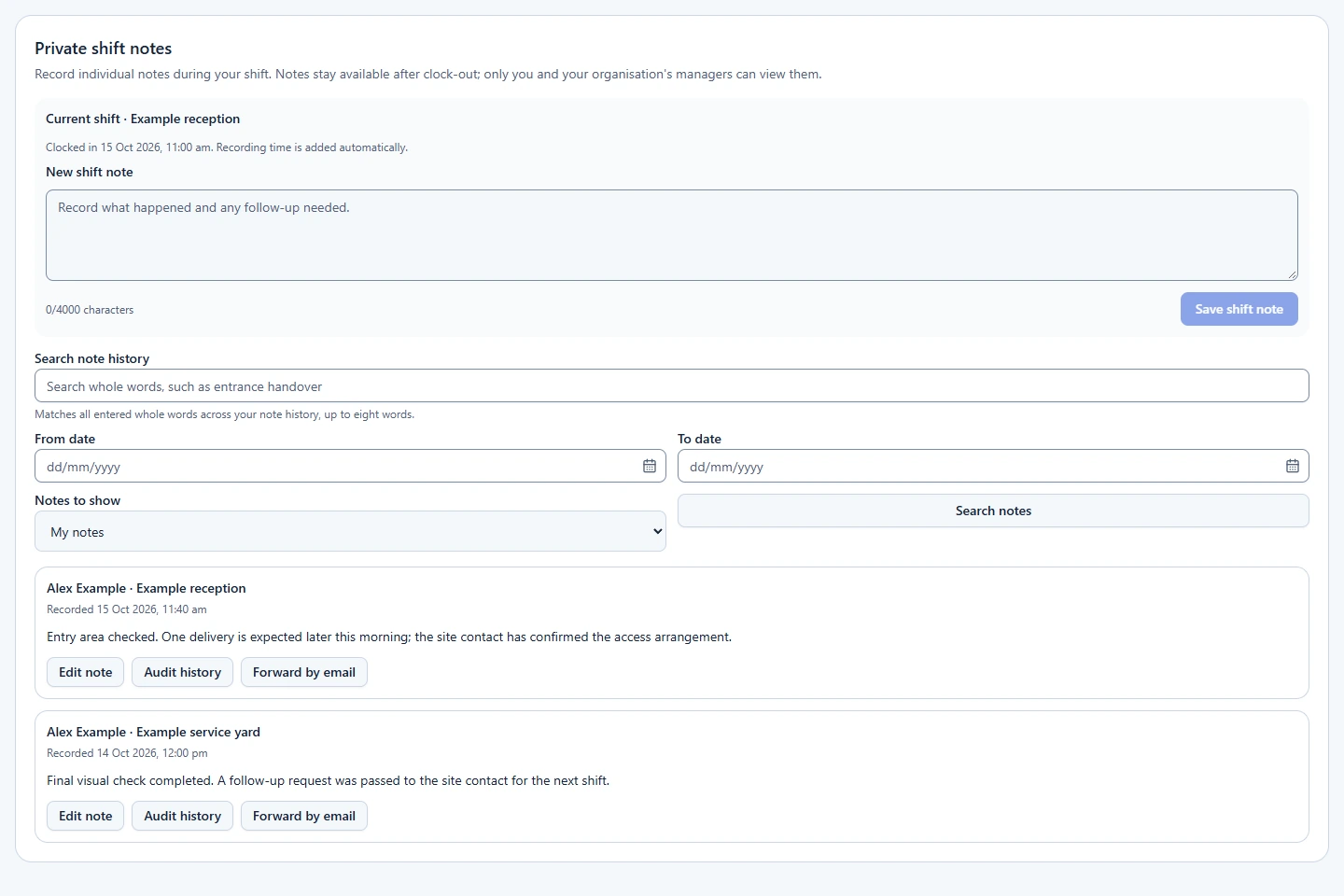
- Where Private Shift Notes is available, use Open shift notes from the workspace, or the shift-note section on Dashboard, while clocked into your published rostered shift. Enter the note and choose Save shift note. Search your history after clock-out.
- Choose Forward by email, enter the recipient, select Preview email and review the exact content. Confirm the review, then select Confirm and send email. Check Audit history before retrying an uncertain send.
Runs have no automatic optimisation, continuous tracking or visit certification. Private notes are visible only to their author and organisation Managers/Admins. Unscheduled clock-ins cannot create these notes. Security retains its existing patrol and shift-note labels.
Use Temperature Records for food operations
In an eligible industry with food handling, Super Admin first grants Temperature Records. An Organisation Admin then enables its separate organisation switch and configures food recording points, location staff and round schedules. Staff complete and confirm a recording round; authorised users can search history and admins can audit corrections. Read Food Temperature Records for the full recording steps.
Related: Feature access and setup · Security-specific tools · Task Lists & Inspections.