Give each operational check a clear owner
Task Lists & Inspections is an optional shared feature. It is off by default and can be granted independently by Super Admin. Use it for practical workforce checks such as opening, closing, room readiness or shift preparation. Industry starter lists are suggestions you explicitly copy and customise; they do not certify compliance.
Create a template
- Open Task Lists & Inspections and select the template area. Managers work within their authorised locations.
- Select Create template or Use starter. Choose the location, enter a clear Template name and instructions. Organisation Admins can also create an all-location template.
- Add up to 30 items using Completion check, Pass / Fail / Not applicable or Written response. Mark required answers, select Save template and wait for confirmation.
Review starter wording against your actual work procedures before assigning it. A later template edit affects future assignments; an existing assigned checklist keeps the questions copied when it was assigned. Archive templates you no longer want to assign.
Assign work and set a due date
- Choose a saved template and assign it to an eligible team member at that location.
- Optionally enter a Due time in the organisation time zone shown beside the field, then choose Create assignment. Saved times use that same organisation time zone.
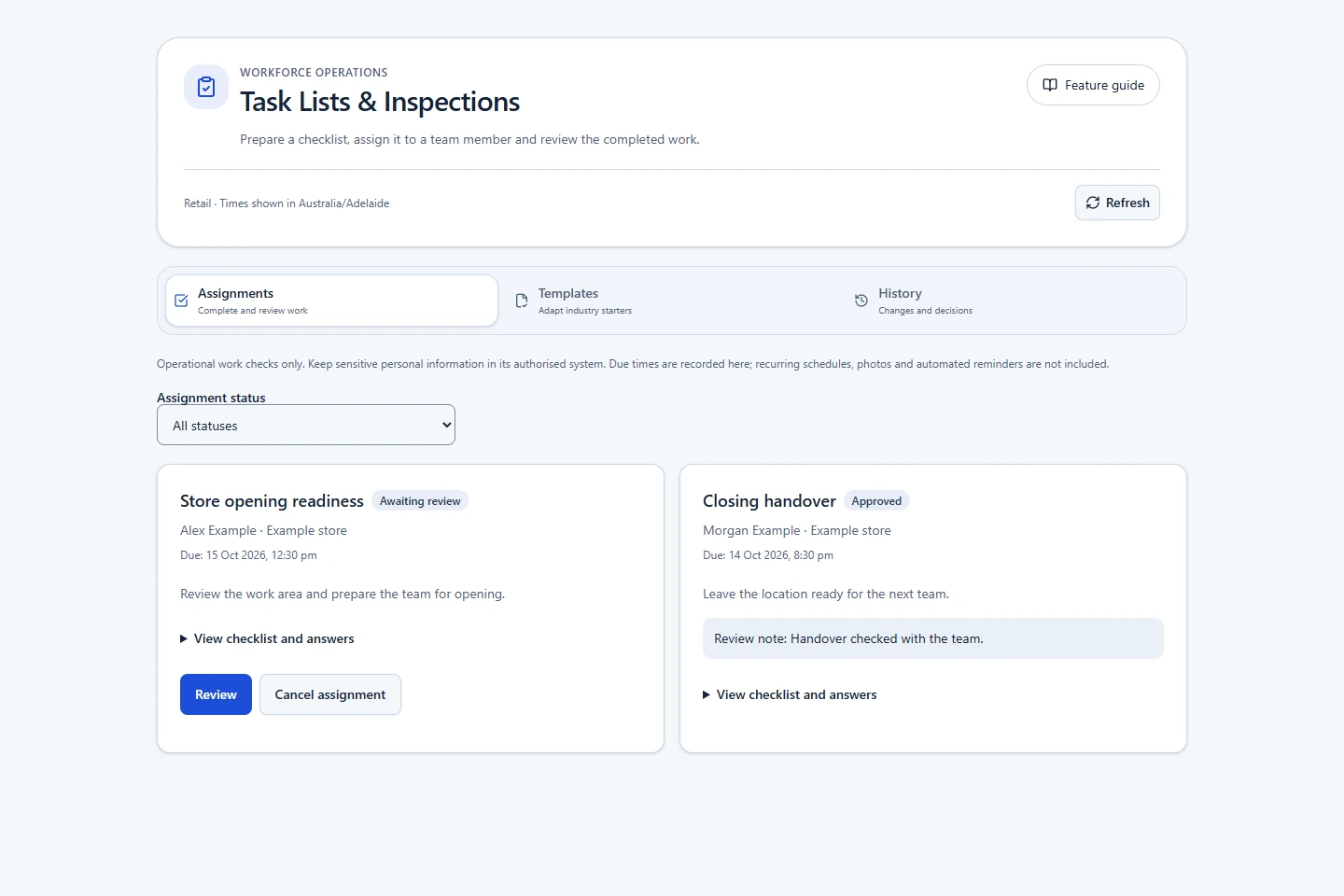
- Review the assignment in the run list. Scheduling is manual in this release; there is no recurring generation or automatic reminder service.
Complete and submit a checklist
- Open your assigned checklist and answer each required item.
- Use the available answer type: a check, a pass/fail/not-applicable result or written text. A failed check requires a note before submission.
- Choose Save progress while working. When required answers are complete, select Submit for review.
Keep the record factual. The checklist feature itself does not include file uploads or signatures. Separately enabled Photos & Signatures can attach supporting evidence to the task assignment. Clinical or regulated inspection certification is not included.
Review, return or approve
- An authorised manager selects Review on a submitted checklist and reviews its answers. Another manager or administrator must review their own assignment.
- Choose Approve completed work or Return for changes, enter the required correction note when returning work, then select Save review.
- The assigned worker updates the returned checklist and resubmits it. Check its status and audit history before treating it as approved.
Submission and approval are separate. A failed check remains part of the record; approval is a manager's review decision, not proof that every answer passed. Managers can cancel work that should not proceed. Disabling the feature retains templates, answers and audit history while closing access until it is enabled again.
Related: Feature access and industry setup · Shared Operations tools · Shared industry features.
Also available separately: Photos & Signatures and Within-shift Allocations. Work Photos, Staff Signatures and Within-shift Allocations each have an independent Super Admin switch and optional future industry setup default.