
Plan where the team member will work during a shift
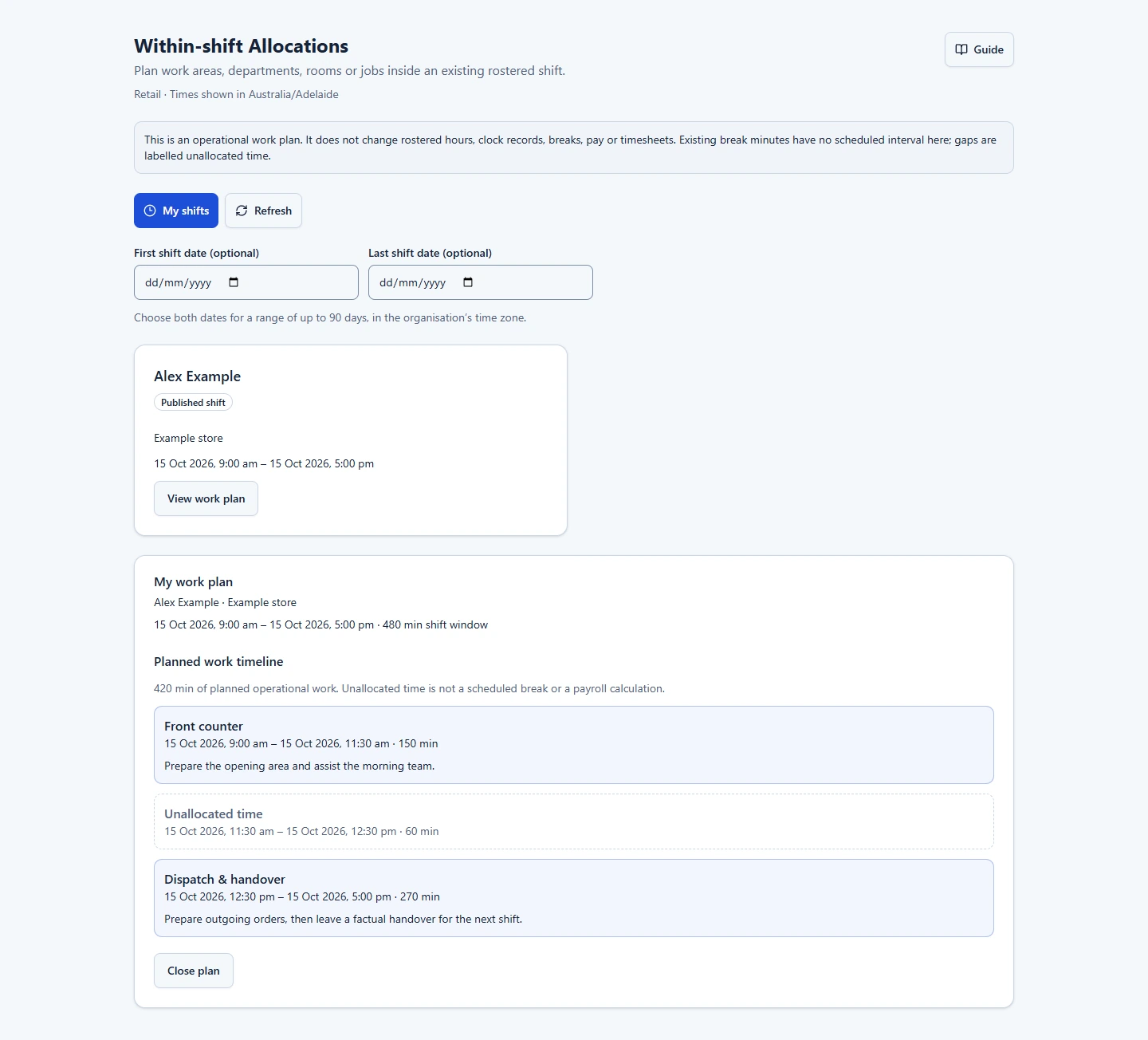
Within-shift Allocations gives one existing roster shift an operational work plan. For example, plan kitchen then bar, store departments, room groups, site areas or production workstations. Super Admin separately enables Within-shift Allocations in Org Permissions and can add it to future Industry Template or business-type setup. It is off until explicitly granted.
Choose the shift
- As an authorised Manager or Organisation Admin, open Within-shift Allocations.
- Filter by location and dates if needed, then select the original roster shift. The default window covers the past seven days and next 28 days; choose both dates for a range of up to 90 days.
- Check its assigned worker, location and start and finish times. Managers can prepare draft or published shifts within their location access.
Plan the work blocks
- Add a block with a clear work-area label, start and finish times, and optional instructions.
- Keep every block within the original shift. Blocks cannot overlap; leave gaps where the work is deliberately unallocated.
- For an overnight shift, check the date as well as the time. Times follow the organisation's time zone. Where a daylight-saving change repeats a time, select the intended occurrence.
- Review the complete plan and save. If the roster changed while editing, reload and check the latest shift before saving again.
Block durations describe planned work. The shift's original break duration has no assigned time interval, so the allocation plan does not decide when a break happened or calculate paid hours. Use the normal timesheet process to review actual work and breaks. Allocations do not split the shift, move its location, change rates or create extra clocking or payroll records.
View and maintain the plan
- Team members open the workspace to view the current plan for their own published shifts.
- When the roster's worker, location or times change, a manager reviews and saves the plan against the updated shift. Until then, staff do not receive the stale plan.
- Use retained plans and history to check previous versions. If clearing a plan, save it with no blocks so the change is recorded.
- After recovery from an organisation backup, review and save the recovered plan before using it again.
Location access applies to management and history. Turning the feature off closes access while retaining plans and change history. Other features keep their own switches. Work-area labels are flexible planning text; they do not create customer jobs, participant visits, equipment records or a separate service-billing system.
Related: Building a roster · Approving timesheets · Feature access and industry setup.