
Keep the next team informed without sharing every private report
Handovers & Shift Reports records a shift summary, completed work, outstanding work and next-shift priorities against one of your own published rostered shifts. Choose Handover when reviewed information should reach selected staff, or Shift report for a private operational record that is not published to staff. It is separate from existing Security Incidents & Handovers, private shift notes, Task Lists and NDIS specialist records; those records and permissions are not copied or changed.
Super Admin must independently enable this feature in Org Permissions. It is off by default, including for existing organisations. Industry Templates and business-type setup can include an explicit choice for future organisations; changing a template, industry label or business type does not enable current organisations or sibling features. The feature is available to supported canonical industries, with current organisation membership, account role and location access checked again when work is saved. Turning it off closes its access while retaining history.
Create an author-private draft
- Open Handovers & Shift Reports and select Create handover or report.
- Choose Your published shift. Only your own published shift at a currently assigned active location can start a new report. Use Load more own shifts if necessary.
- Select the Record type. A Handover may later be shared after review; a Shift report remains an author and management record.
- Write the Shift summary, Completed work, Outstanding work and Next-shift priorities. The summary is required before submission; the other fields are optional.
- Select Save draft and wait for confirmation. Reopen it through My reports → Open report → Edit draft when ready to continue.
A new draft is private to its author, including when it is cancelled before its first submission. Cancelling an unsent draft does not expose it to managers. The author retains their own historical reads if their account role or location assignment later changes; that does not grant permission to edit or submit without current access.
Submit, correct and obtain independent review
- Open your saved draft, select Edit draft, check the shift context and choose Submit for review.
- A different authorised manager opens Location review, chooses Open report and selects Review report. Managers work within their current original-location access; Organisation Admins have organisation-wide management scope.
- The reviewer checks the structured content and either selects Mark reviewed or enters a correction note and selects Return for changes.
- For a Changes requested record, the author opens the review note, edits their report and resubmits it. The same author cannot review or publish their own report.
The first submission is retained permanently. After submission, authorised original-location management can read the record, including later returned or cancelled states. A submitted or published report cannot have its wording silently rewritten. A saved report keeps its minimal original shift snapshot if the roster is later changed or removed. Existing drafts and returned work still require the author's unchanged published source before saving or submitting.
Publish a reviewed handover to selected recipients
- For a Reviewed Handover, a manager other than its author selects Choose handover recipients. The reviewer may publish in this separate explicit step.
- Search Find location recipients and select the intended active, accepted staff at that original location. Use Load more recipients when needed; up to 50 different recipients can be selected.
- Check the selection count and choose Publish handover. Search choices remain selected until removed.
- Use View acknowledgement status to review the recipients and their responses. A private Shift report has no publication action.
Only explicitly selected current recipients can open the published version in Received handovers. Being another member of the location does not grant access. Publishing sends no email, push notification or automatic next-shift assignment.
Read and acknowledge the version you received
- Open Received handovers and choose Open report.
- Read the exact published summary, outstanding work, next-shift priorities and manager review.
- Select Acknowledge handover. Optionally choose Your receiving shift from your own published shifts at the same location.
- Select Confirm acknowledgement. The server records your account, time and the published version. A later publication needs its own acknowledgement.
This is a receipt acknowledgement, not a signature, proof of reading, proof that work was completed or a payroll action. Managers and authors can use View history to inspect chronological changes. An authorised cancellation or Retract publication stops recipient access and retains the original history.
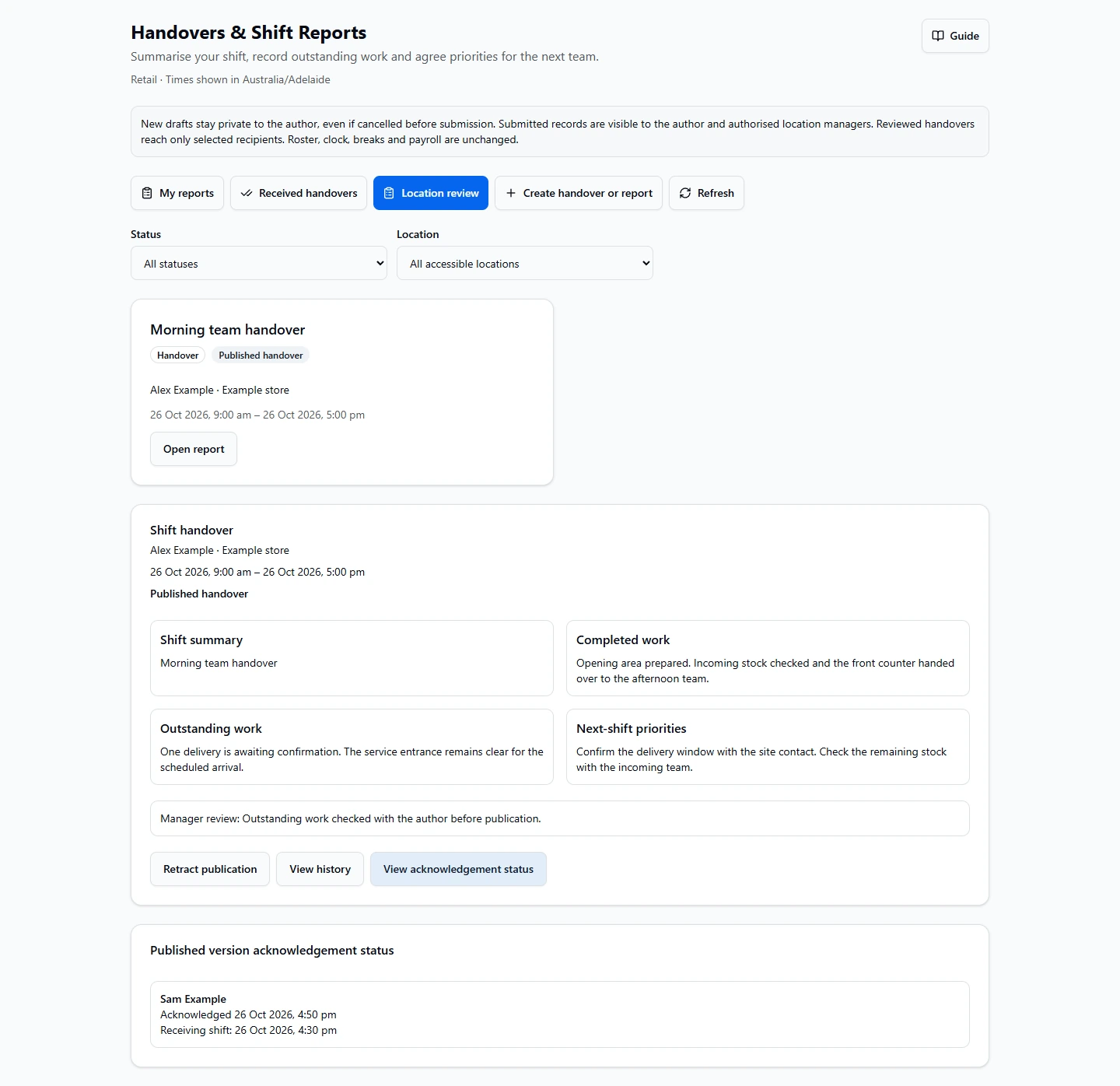
Continue retained work and handle recovery safely
- If a location is retired, finish an existing draft, correction, review or cancellation only while current membership and original-location access still permit it. Existing source-dependent edits must still match the author's published shift.
- Existing published recipients may still read and acknowledge their version at that retired original location, optionally linking an already-existing own published receiving shift there.
- Do not create new reports or publish a new handover at a retired location. Those actions require an active location.
- After backup recovery, unfinished records are cancelled. Reviewed or published recovered records are quarantined for manager review, and recipients cannot use a quarantined publication.
- A different manager selects Review restored record → Confirm restored record reviewed. If the original location is active, explicitly choose fresh recipients and publish a new version. Old acknowledgements stay historical and do not acknowledge the reissued version.
Use this for operational team handovers such as opening/closing progress, delivery follow-up, room readiness or work-area priorities. It does not create clinical or participant case notes, statutory sign-off, attachments, claims, clock records, timesheets or changes to rostered hours, breaks or pay.
Related: Feature access and industry setup · Handovers & Shift Reports · Incidents & Follow-up · Inductions & Briefings.