Give each induction or shift briefing an exact retained version
Inductions & Briefings supports location-based operational instructions and checklist acknowledgements. Choose Induction for a local introduction or Shift briefing for team instructions. It is separate from Security site instructions, Qualification Checks, the Training register and Staff Signatures; publishing a briefing does not grant or copy those features or records.
Super Admin must independently enable this feature in Org Permissions. It is off by default, including for existing organisations. Industry Templates and business-type setup can include an explicit choice for future organisations; changing a template, industry label or business type does not enable current organisations or sibling features. The feature is available to supported canonical industries, with current organisation membership, account role and location access checked again when work is saved. Turning it off closes its access while retaining history.
Create and publish a briefing
- Open Inductions & Briefings → Briefing drafts and choose Create briefing.
- Select Induction or Shift briefing, then search and choose a current location within your management access. Use Load more locations if needed.
- Enter the Briefing title and Instructions. Optionally select Add checklist point and mark required points with Required acknowledgement.
- Choose Save draft. A briefing supports a title of up to 160 characters, instructions of up to 6,000 characters and up to 20 checklist points.
- Choose Publish version, review the exact title, instructions and points, check the explicit publication confirmation and confirm publication.
Published numbered versions are immutable. Editing a draft changes only a future publication. An unchanged draft cannot be repeatedly published merely to create duplicate versions.
Assign one exact version to a person
- Select Assign latest version on the intended briefing.
- Search and choose an accepted current worker at that original active location.
- Optionally link that person's current published shift at the same location.
- If needed, enter a Due time in the organisation time zone shown in the form. Check the date for overnight work and choose the intended occurrence of a repeated daylight-saving time; nonexistent times cannot be saved.
- Select Create assignment and check the saved person, exact version and due time.
Assignments are issued manually. Publishing a newer version does not rewrite an assignment, move its optional shift link, reset an earlier acknowledgement or automatically request another response. Explicitly assign the latest version when a new response is required. Overdue labels use server time; there is no automatic reminder or recurring assignment service.
Record your own staff acknowledgement
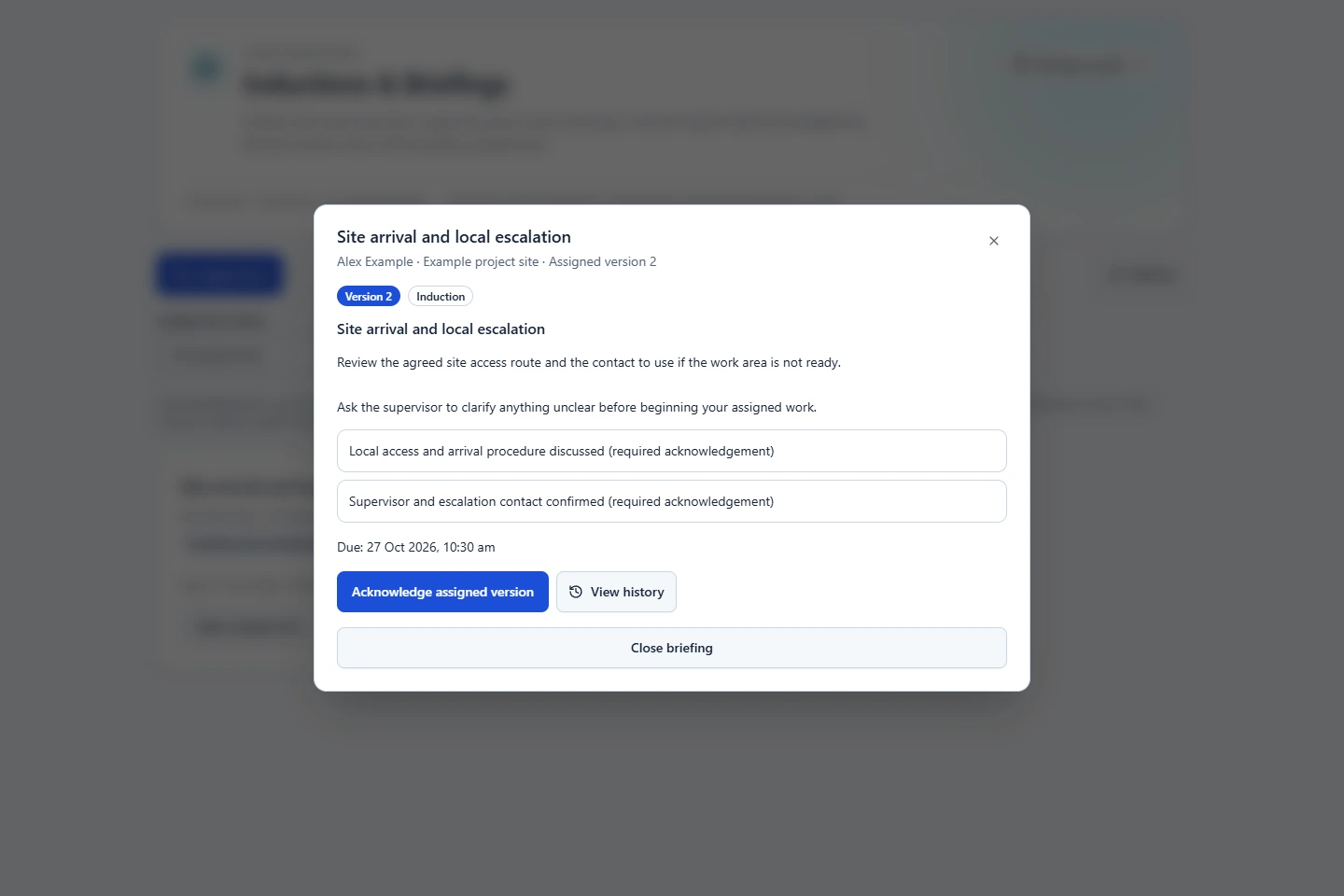
- Open My assignments and read the assigned instructions, version number and checklist.
- Choose Acknowledge assigned version.
- Explicitly check every required point and the own acknowledgement checkbox. Optional checklist points remain optional. Add an optional note when useful.
- If the assignment is labelled Superseded, review the additional confirmation and explicitly confirm that you are recording the older assigned version.
- Save and wait for confirmation. The response records your account and the server time against that exact assigned snapshot.
A response to an older assigned version stays historical and superseded. It is not silently treated as an acknowledgement of the latest version. If publication changes while saving, refresh and check the assigned-version warning again.
Record and independently verify an induction
- For another person's Induction, an authorised manager may choose Record induction completion.
- Confirm the required checklist points, check the explicit recording confirmation and enter the required Completion basis / note.
- Save the manager-recorded completion. The Recorded state means that manager recorded their account of completion; it does not record a staff acknowledgement.
- A different current authorised manager, who is neither the recorder nor the assignee, selects Verify completion, explicitly confirms their review and saves an optional note.
- Check for Verified status. A staff-acknowledged induction may also receive separate manager verification.
Shift briefings use staff acknowledgement and do not offer manager-recorded induction completion or induction verification. Assigned, Recorded, Acknowledged, Verified and Cancelled are distinct states; recording and verification are not interchangeable.
Maintain versions, archive drafts and retain history
- Use published versions and View history to inspect retained instructions, assignments and chronological changes.
- To stop new assignments, edit the draft and select Archive this briefing. Existing assigned instructions and completed responses remain.
- A manager can cancel unfinished Assigned or Recorded work with a reason. This does not cancel its roster shift.
- New draft creation, publication and assignments require active locations. Existing assigned work may still be acknowledged, manager-recorded, verified or cancelled at a retired original location while fresh member and location access permit it.
- After backup recovery, unfinished Assigned and Recorded work is cancelled for manual review. Completed historical acknowledgements and verification remain attached to their original snapshots; no assignments or grants are replayed.
Handle failed or uncertain saves
- Keep the original draft and read the failure message.
- When the result is uncertain, retry the same save before editing or explicitly close/discard and check saved records. Reusing its operation reference avoids duplicate work.
- If access is revoked, protected records and unsaved private forms are cleared. Ask an administrator to review current access before resuming.
Use this for local access, opening procedures, supervisor contacts and shift-work arrangements across industries. It is an operational acknowledgement, not proof of reading, competence, attendance, a licence, statutory induction or course completion. Checkboxes are separate from drawn or typed signatures. It includes no uploads, rich HTML, automatic notifications, clinical instructions, participant treatment records, payroll changes or compliance certification.
Related: Feature access and industry setup · Handovers & Shift Reports · Incidents & Follow-up · Inductions & Briefings.