
Give an operational concern a clear reporting and follow-up path
Incidents & Follow-up separates a private incident report from the minimum work instructions issued to someone who will help resolve it. Use it for ordinary workplace hazards, near misses, property or equipment concerns, and service or access issues. Use your existing emergency procedures for an urgent incident: this workspace sends no automatic alerts and does not provide emergency dispatch.
Super Admin must independently enable this feature in Org Permissions. It is off by default, including for existing organisations. Industry Templates and business-type setup can include an explicit choice for future organisations; changing a template, industry label or business type does not enable current organisations or sibling features. The feature is available to supported canonical industries, with current organisation membership, account role and location access checked again when work is saved. Turning it off closes its access while retaining history.
Write your own factual report
- Open Incidents & Follow-up and select Report incident.
- Choose your own Published shift or an authorised active Location. A shift-backed report requires your current original-location assignment as well as ownership of that published shift.
- Enter a clear title, operational category and severity, the Occurred date and time, a factual description and any immediate action already taken.
- Use the organisation time zone shown in the form. A repeated daylight-saving time needs the intended occurrence; a nonexistent time is rejected. The incident time cannot be in the future beyond the small server clock allowance.
- Select Save draft while preparing the report, or Submit report when its factual description is ready.
Unsubmitted drafts are private to the reporter, including drafts cancelled before submission or recovered as cancelled without ever being submitted. Management access begins only after the first submission and remains limited to authorised original-location scope for previously submitted, returned or cancelled records. Submitted versions are retained unchanged, so a correction creates a new submitted version rather than overwriting the earlier account. A different manager must triage the reporter's own incident.
Triage or return the submission
- An authorised location manager opens the submitted report and checks its source, incident details and retained submitted version.
- Enter a triage or correction note.
- Choose Triage and open to start follow-up, or Return report when the reporter must correct factual details.
- The reporter corrects a returned report and resubmits it. Earlier submitted versions stay in history.
Assign a minimum-necessary follow-up brief
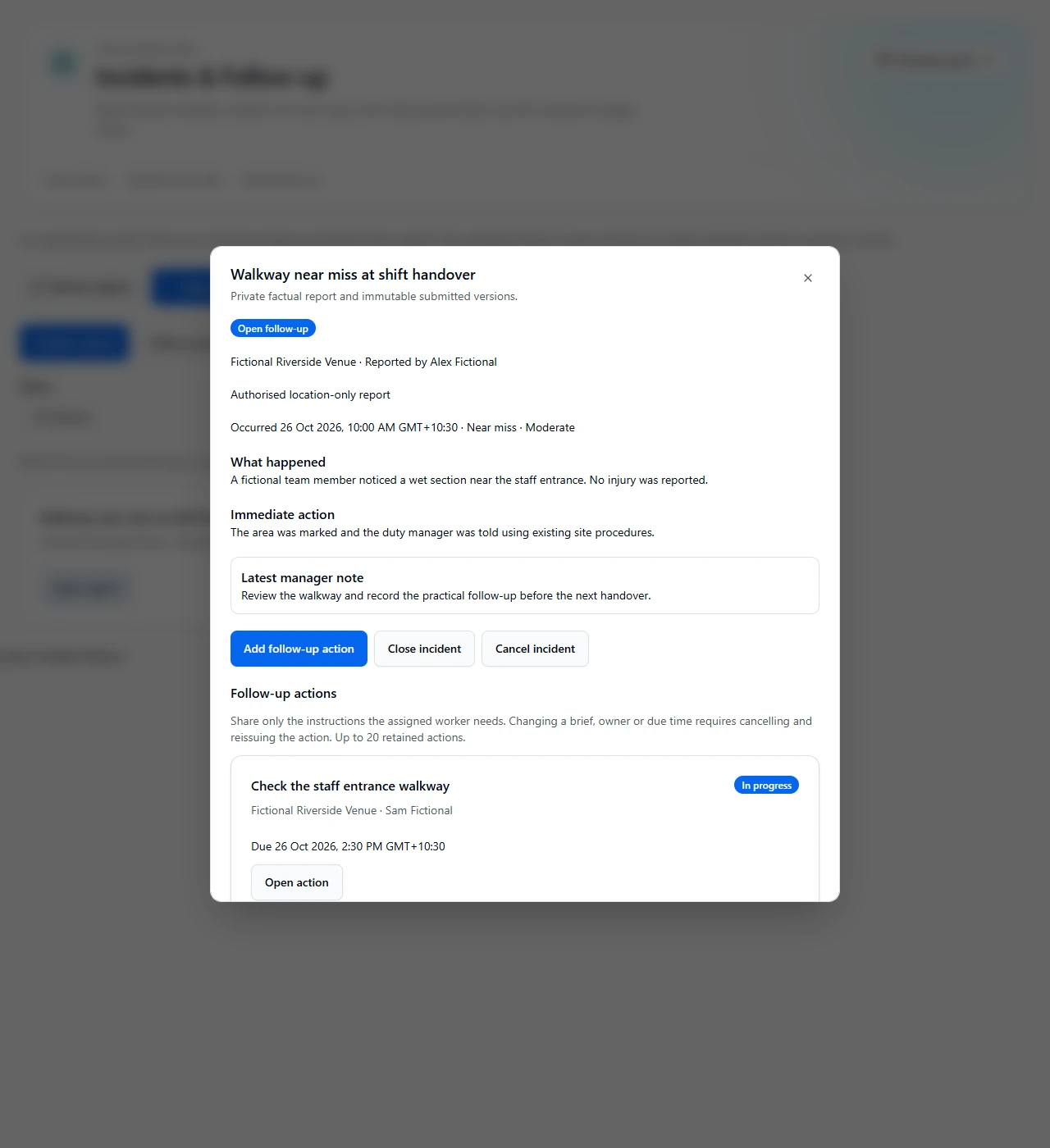
- From an Open follow-up incident, select Add follow-up action.
- Search and select an accepted active member currently assigned to that original active location.
- Enter a clear action title, instructions and due time. Share only the information the assignee needs to perform the action.
- Confirm the organisation time zone and any repeated-time occurrence, then select Assign action.
- Check the action card. Overdue status comes from server time; it is a status indicator, not an automatic reminder.
An action assignee receives their brief, location, due time, progress, resolution and action-only history. Assignment does not grant the incident report title, body, reporter identity or full report history. Up to 20 retained actions and 40 submitted versions are supported per incident. An issued brief and assignee cannot be silently changed; cancel the unfinished action and issue a replacement when required.
Complete an action and obtain separate closure review
- The assigned person opens My actions and reads the exact retained instructions.
- Select Save progress while working. Enter factual resolution text and choose Submit resolution when ready for review.
- A different authorised manager reviews the submitted resolution. The reviewer must be separate from both the action worker and the incident reporter.
- Select Close action when satisfied, or return it with a reason for further work. Reopening a closed action also requires a reason.
- The worker corrects returned work and resubmits it. Managers can cancel unfinished actions with a reason while preserving their briefs and history.
Close or reopen the incident
- Check that every retained action is Closed or Cancelled.
- A manager other than the incident reporter selects Close incident and records a closure reason.
- If further work becomes necessary, use Reopen incident with a reason and review the earlier history before issuing new actions.
- Review the chronological report submissions, action history and manager decisions rather than treating a submitted resolution as already approved.
New incident reports and new action assignments require active locations. Existing drafts, corrections, assigned actions and management review may finish at a retired original location when fresh membership, role, grant and original-location access still permit them. Turning the feature off blocks access while retaining records. Backup recovery cancels unfinished reports and actions for manual review; it does not replay assignments or restore feature grants.
Recover carefully from a failed or uncertain save
- Read the visible error and keep the existing draft open.
- If the result is uncertain, retry the original save or use the available saved-state check before changing the details. The same operation reference prevents duplicate work.
- Refresh and review the confirmed saved record before issuing a replacement action. Unsaved form values alone are not a submitted or closed record.
This general workforce module remains separate from Security incident records, NDIS notes and specialist systems. It does not provide clinical treatment records, statutory reporting, safety certification, asset maintenance control, notifications, payroll changes or automatic claims.
Related: Feature access and industry setup · Handovers & Shift Reports · Incidents & Follow-up · Inductions & Briefings.