Use a shared workplace kiosk
Kiosk Mode lets staff clock into published shifts, take breaks and clock out on a shared tablet. It starts off at two levels: Super Admin makes it available, then an Organisation Admin enables and pairs it. Staff still use their own account for personal dashboard access.
1. Enable and pair the tablet
- Ask Super Admin to enable Kiosk in Org Permissions. Industry Templates set future organisation defaults; they do not activate existing organisations or replace an accepted business-type OFF choice.
- On your own admin device, open Settings → Kiosk and enable Kiosk Mode. The tab is hidden until the feature is available.
- On the shared tablet, open shiftrova.com/kiosk, choose Check tablet & camera. Preview and select the camera, test screen wake and optional location access, then request a pairing code. Optional automatic PIN checking is chosen before pairing.
- Enter the matching eight-digit code in Settings → Kiosk. Choose an active location and name the tablet. Codes expire after five minutes.
- Pairing signs the tablet browser out of any normal ShiftRova account. The paired device has kiosk-only access for 30 days; admins can revoke it at any time.
2. Prepare staff numbers and PINs
- Staff sign into their own account and open My Profile → Kiosk PIN.
- Set a private four-digit PIN. ShiftRova assigns a five-digit staff number unique within the organisation.
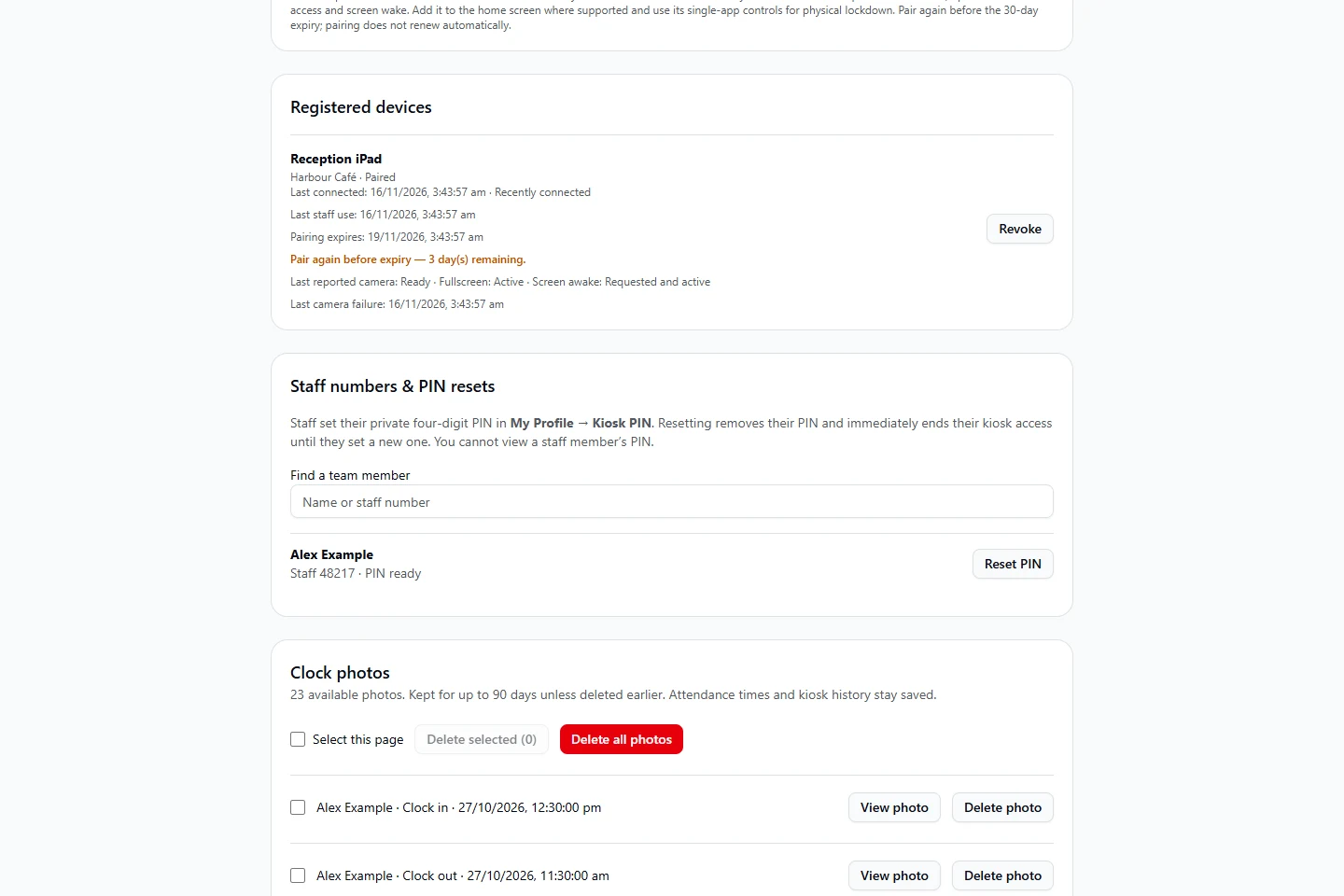
- Admins can assign numbers and reset PINs in Settings → Kiosk. Resetting removes the old PIN and ends existing staff kiosk access; the worker sets a new PIN from their own account.
Admins cannot view PINs. Archived or deleted staff cannot use the kiosk.
3. Clock in, take breaks and clock out
- Enter the five-digit staff number; the kiosk advances to PIN entry automatically. Use Back to correct the number. Enter the four-digit PIN, then Continue unless automatic checking was selected during setup. A physical numeric keyboard is also supported.
- Clock In becomes available within the organisation's clock-in window for the next published shift at this kiosk's location.
- While clocked in, use Start Break, Finish Break and Clock Out. Clocking out during a break finishes that break and completes the timesheet together.
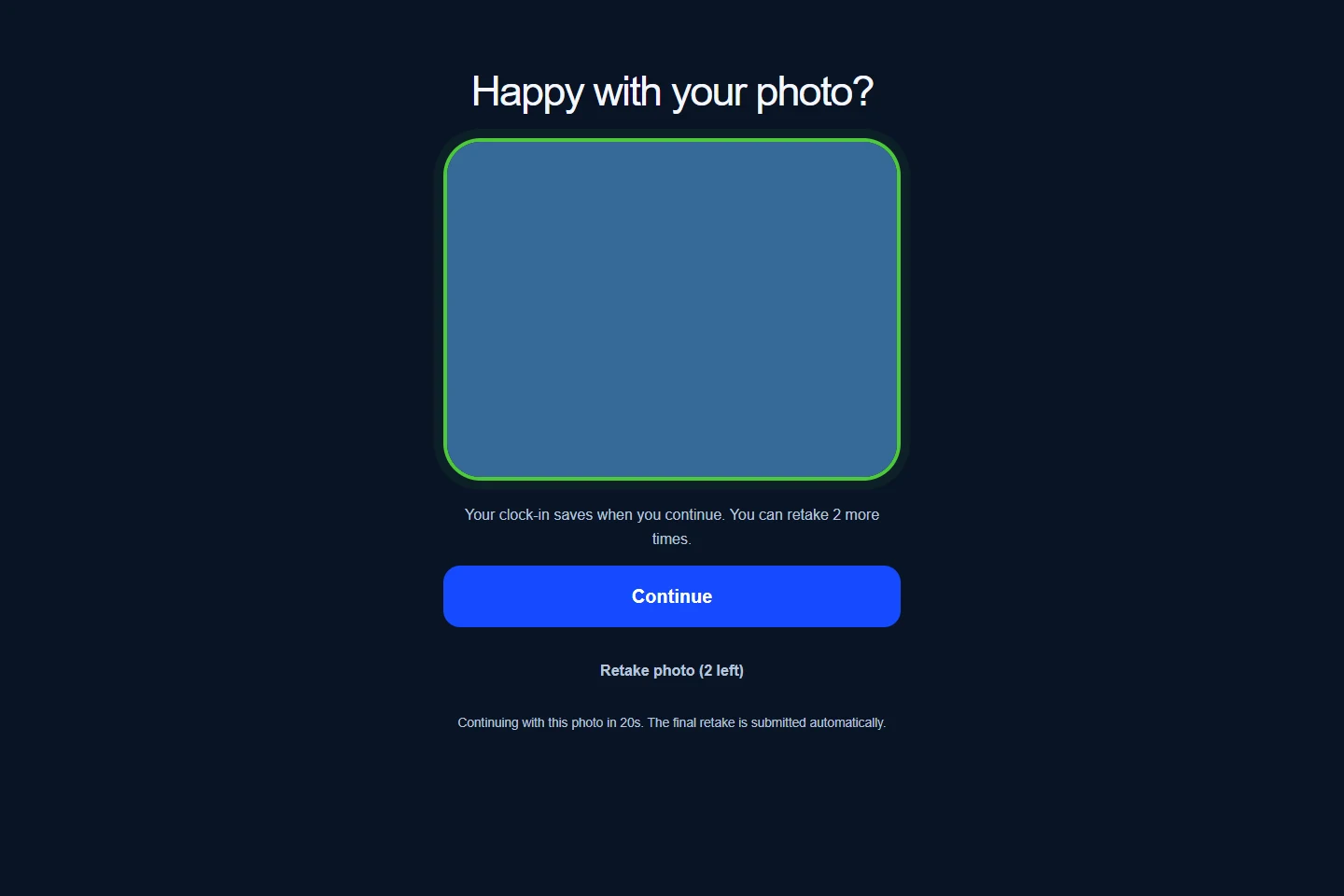
- At clock-in and clock-out, use the camera preview and countdown. Review the photo, then select Continue or Retake photo.
Two retakes are available; the third capture submits automatically. An unattended review continues after 20 seconds. The clock action saves when the photo is submitted. Break actions do not take photos. A saved action shows its confirmed organisation-local time and a Next person button before returning to the clock; staff details also clear after inactivity. Dates and times use the organisation timezone.
4. Review and delete clock photos
- Managers and Admins can open IN/OUT thumbnails on Timesheets rows and in Edit Timesheet. Enlarge a thumbnail to review its original capture time.
- A kiosk icon identifies kiosk attendance even after its photo expires.
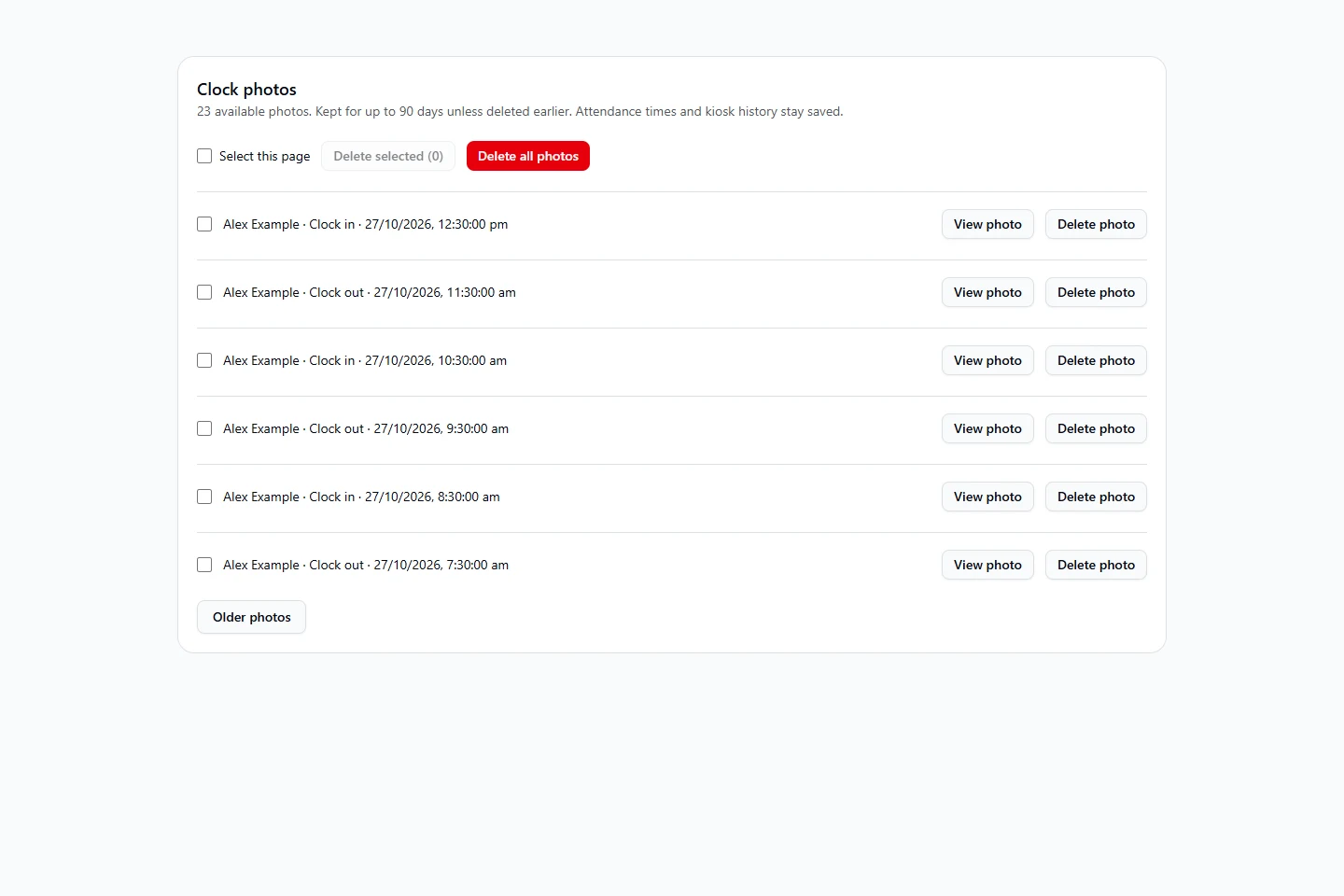
- Org Admins can open Settings → Kiosk → Clock photos. Browse pages of 20, select up to 50 across pages, or choose all existing organisation photos.
- Review the confirmation before deleting one, selected or all photos. Deletion cannot be undone. Access ends immediately; private storage cleanup retries if required.
Photos are private and kept for up to 90 days unless deleted sooner. Attendance events and audit history remain. Photos support visual review; ShiftRova does not perform facial recognition. Explain workplace photo use to staff before enabling the kiosk.
5. Keep the tablet ready and resolve problems
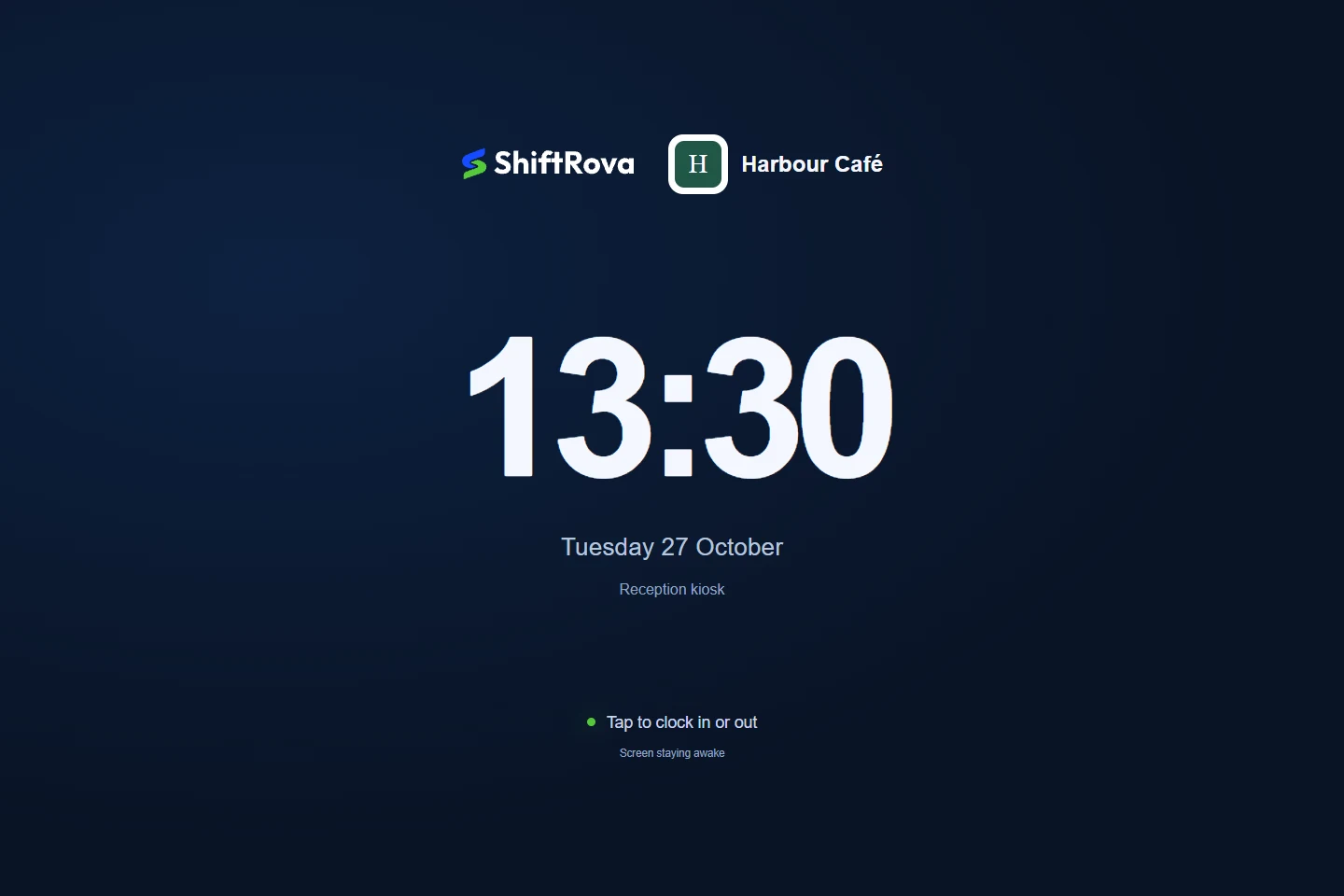
Kiosk taps request fullscreen on supported browsers. Adding it to the home screen opens its standalone view. Browsers still allow fullscreen to be exited; use the tablet's own single-app controls when a device lock is needed. While paired and visible, the kiosk requests screen wake where supported. Keep it powered; low battery, browser support or device policy can still allow sleep. The idle clock moves its content and dims after a minute, but cannot guarantee against display burn-in.
The kiosk needs HTTPS, camera access and an online connection to prepare the paired tablet and sync attendance. If location is required, allow it too: assigning a venue is not GPS evidence. It supports scheduled shifts at its assigned active location, without unscheduled starts, early-start overrides or reopening completed shifts. Turning Kiosk Mode off revokes paired devices; enable and pair again to resume. Wake/fullscreen never extends pairing authority.
Original attendance events and existing payroll review rules remain. Kiosk clock-outs do not assume a worker confirmed no extra work, so automatic matching or approval may stay pending. An unfinished break needs manager review. If submission is uncertain, Retry checks the same action to avoid a duplicate punch. If camera or connectivity fails, use personal clocking or ask a manager to record attendance through the existing process.
Related guides
6. Connection recovery, breaks and device health
- Early arrivals see a countdown. The online kiosk checks the server again before enabling Clock In. An offline-ready tablet uses the latest prepared roster for its location. No shift or wrong-location messages explain when a manager should check the published roster; they do not grant unscheduled clock-in.
- The staff screen shows completed break minutes, the rostered break allowance and a live current-break timer. Clock Out during a break finishes both after photo confirmation. These displays do not change payroll calculations.
- Connection failures show Reconnecting rather than asking to pair again. An uncertain submission retains only an anonymous operation reference on this tablet. After a reload, ShiftRova checks the original receipt without storing or replaying PINs, names or photos.
- Wait for a confirmed result. Do not clock again elsewhere while an action remains uncertain. Missing or expired requests are closed on the server before another attempt. If the device was re-paired, ask a manager to check attendance first. A supported tablet with current offline data can keep recording punches during an outage.
- Settings → Kiosk → Registered devices shows last connection separately from last staff use, the exact 30-day expiry and a warning during the final seven days. Camera, fullscreen and screen-awake indicators are last reported values, not a live guarantee. To renew access during a quiet period, revoke the device in Settings, then use the tablet setup check to obtain a new code and approve it again. Health reports never extend device access.
Use Need help? for staff-number and PIN instructions. Unexpected kiosk failures are recorded with sanitised codes in the private Super Admin application error log. The paired tablet has no general settings or account access.
7. Get a tablet ready for an outage
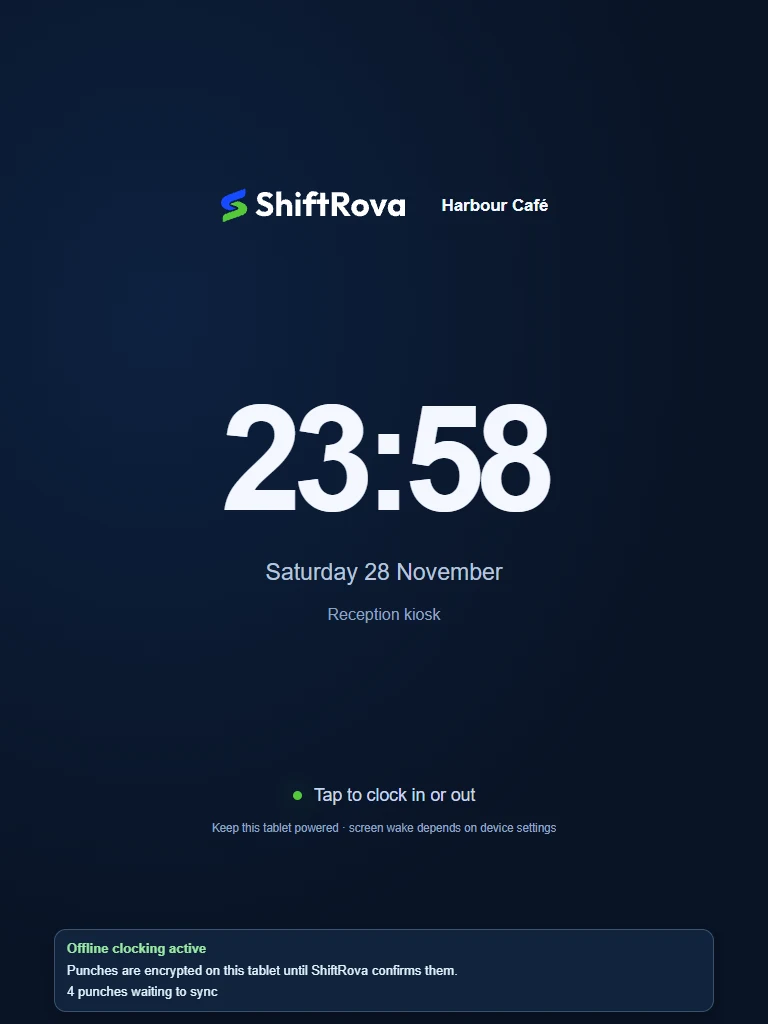
Open the paired kiosk online until it shows Offline ready. The panel shows the last sync and how many rostered staff are ready. An existing kiosk PIN is prepared after the next successful online kiosk entry. The tablet refreshes its work location’s roster hourly and when the screen returns or the connection comes back. A snapshot lasts up to 12 hours and ends sooner if its pairing is due to expire.
During an outage, staff use their usual staff number and PIN. The kiosk checks the protected PIN verifier and records clock-ins, clock-outs and breaks. Keep using the camera and any required location permission. Saved on this tablet · waiting to sync means an encrypted punch was saved locally. Reopen the kiosk online or choose Sync now to upload the queue. Keep the same pairing and avoid clearing browser data while punches are waiting.
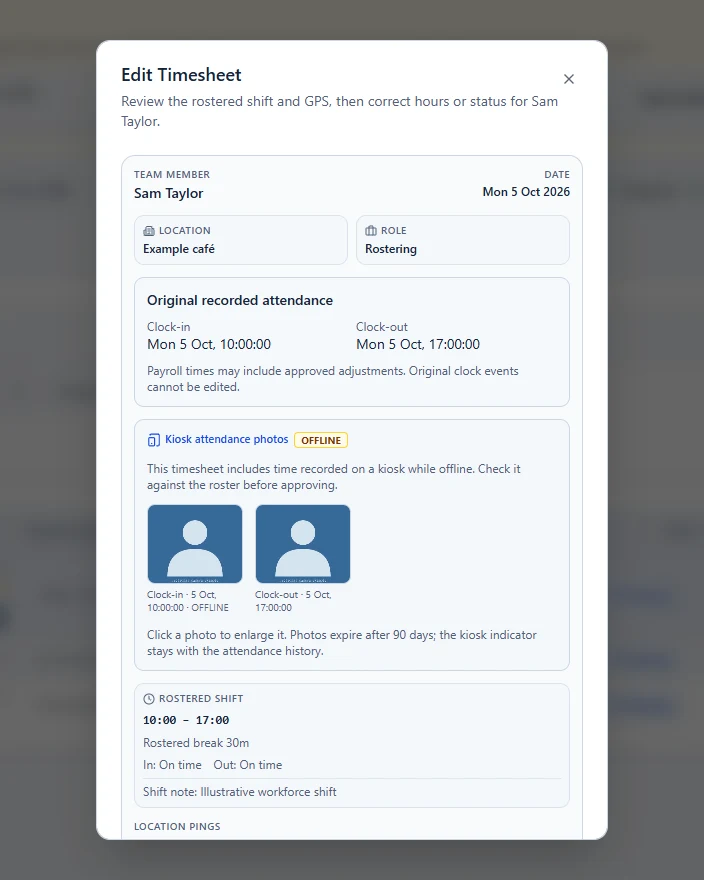
When the tablet reconnects, ShiftRova discards queued punches older than 48 hours. If the kiosk reports expired punches, ask a manager to check any missing time and enter it manually if needed. For punches that sync, ShiftRova verifies the PIN and current shift access and preserves the original time. Timesheet rows and the editor show OFFLINE whenever a synced punch or break was recorded offline. Check these entries against the roster before approving. In Timesheets → Offline kiosk punches to review, managers can inspect the original punch, review a PIN or roster conflict and make any necessary correction using the timesheet editor. An unresolved flag adds no payroll hours. Ask a manager to record your time if the tablet needs a refresh or cannot obtain required evidence.