
Report a concern within your organisation
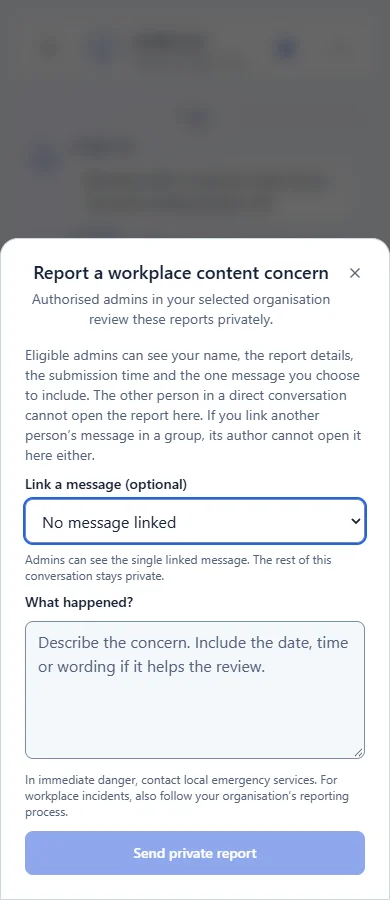
In Messages, open the person or channel. Select Conversation options beside its name, then choose Report a concern. Describe what happened and optionally link one message from this conversation. Share the details needed to review the concern.
1. What the report contains
Eligible organisation admins can see the reporter’s name, conversation context, submission time and description. If you link a message, the report can show that message and who sent it. The rest of the conversation remains private. The other participant in a direct chat and the author of a linked channel message cannot open that report.
2. Who receives it
The report appears in Workplace reports in Messages for eligible administrators in the selected organisation. Keep the receipt for follow-up with an eligible admin. If the result is uncertain, retry the same report to check its receipt. If no eligible admin can receive it, use your organisation’s reporting process. For immediate danger, contact local emergency services.
3. Block direct contact
Open the direct chat and choose Conversation options, then Block direct messages and confirm. Blocking applies within the selected organisation and keeps shared channels available. Choose Unblock direct messages to remove your block.
For service or account help, use Profile or Personal Settings. For an operational incident, use your workplace reporting process.