
Find the right conversation
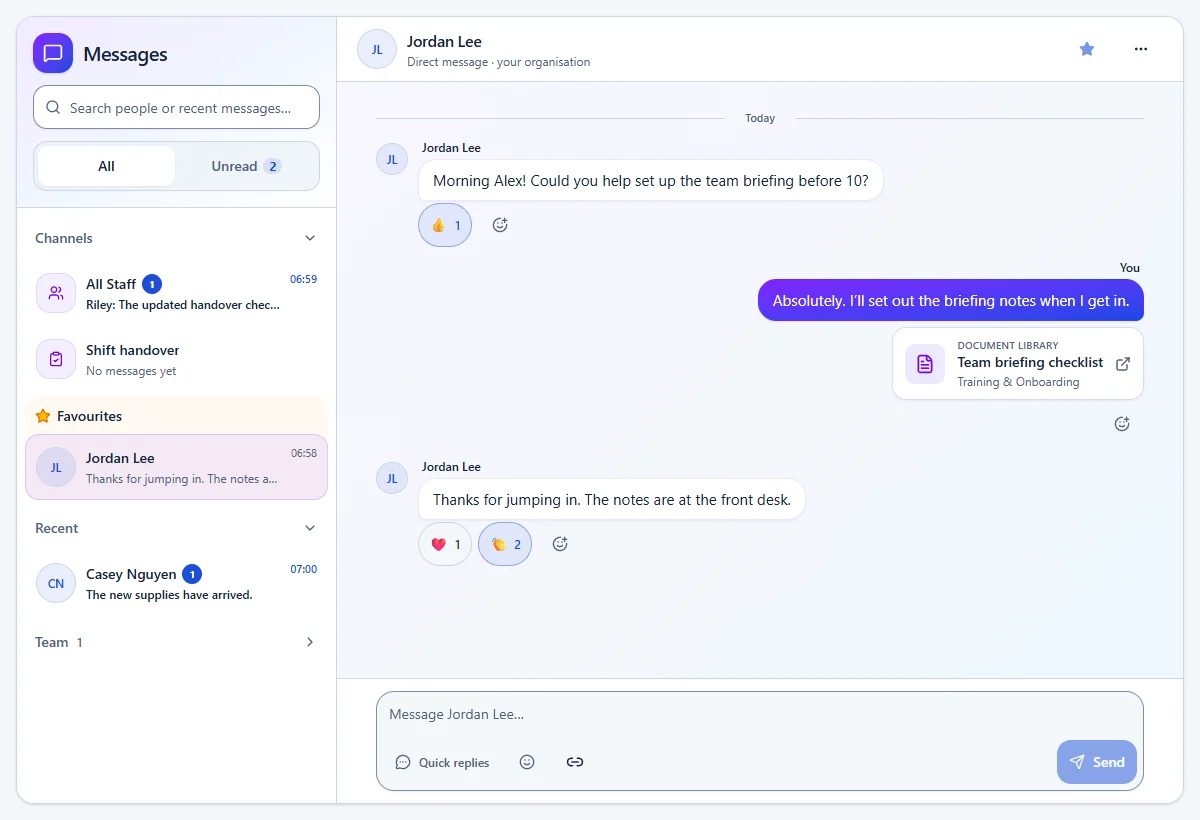
Open Messages from the header. The selected organisation and your current permissions control which people and channels you can open. Use Unread to catch up, search names and recent previews, or choose the star in a conversation header to keep it in Favourites below Channels.
1. Read and react
Day dividers stay visible. Hover a message to see its date and time in the organisation’s timezone. Tap it on a phone or tablet, or focus it with the keyboard. Select the reaction control to choose from 12 emoji. Select your reaction again to remove it. A reaction creates no alert or unread message.
2. Write and share
Pick an emoji or insert an editable quick reply, then choose Send. Choose Link a library document in the composer to search for and attach an existing item. You can send the card on its own or add text.
Readers need their own Document Library access to see the document’s title and category and to open it. If the document becomes unavailable, the conversation remains and the card shows an unavailable message.
3. Personalise your inbox
Teammates’ available profile photos appear in conversation and member lists. An organisation manager or admin can choose from the preset icons when creating a custom channel, or select the icon beside the channel name to change it later.
4. Get help with a conversation
Open Conversation options beside the recipient or channel name to report a concern or block direct contact. New Messages reports go privately to eligible admins in the selected organisation. Read the message safety guide for what the report contains and who can see it.