
Set a salary instead of an effective hourly rate
Managers, Organisation Admins and Super Admins with access to the team profile can save a salary for that organisation. Payroll Officer accounts remain read-only. Salary costing is part of the existing pay settings, not a new optional industry module.
1. Open the correct employee and organisation
- Check the active organisation, then open Team and the team member's profile.
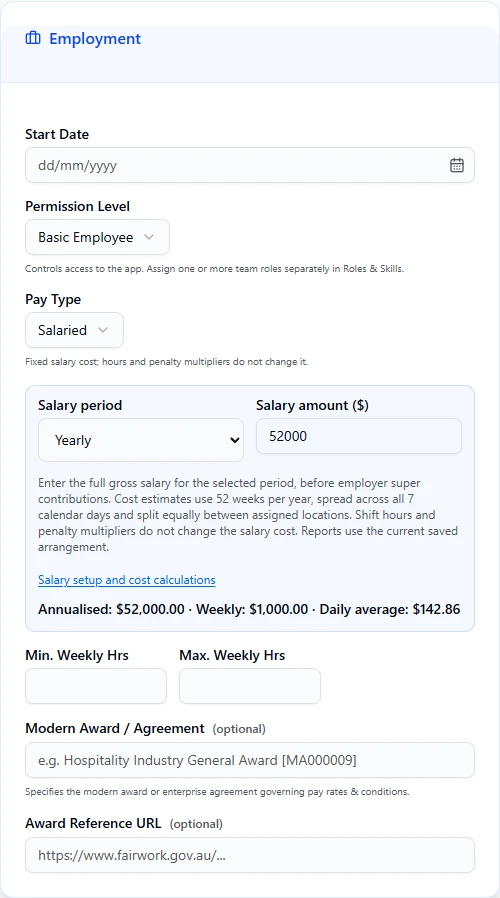
- Find the Employment card and select Salaried under Pay Type.
- The hourly-rate input, named hourly rates and Pay Rate Finder are replaced by salary fields. An old effective hourly rate is not automatically converted into a salary.
2. Enter the full amount for its period
- Choose Salary period: Weekly, Monthly, Quarterly, Half yearly or Yearly.
- Enter the full gross Salary amount ($) for that period, before employer super contributions. For example, enter 52000 with Yearly, or 1000 with Weekly.
- Review the Annualised, Weekly and Daily average figures. These are cost estimates, not an award or salary-compliance assessment.
- Select Save on the Employment card or Save Profile. A failed save keeps the draft. If another editor changed the arrangement, reload the saved profile before trying again.
3. Check assigned locations and cost allocations
- Review the person's location assignments in your organisation's location settings.
- Salary is split equally between their assigned, active locations. The split does not depend on their shift hours or where they worked that week.
- A person with no assigned location still contributes to the organisation-wide salary total, but has no location share. Assign locations to include their salary in a location's budget.
- Daily allocations include all seven calendar days, even days without a shift. Multiple shifts on one day never duplicate the salary.
4. Understand the calculation
Annualisation uses Weekly × 52, Monthly × 12, Quarterly × 4, Half yearly × 2, or Yearly × 1. Weekly cost is annualised salary ÷ 52. That weekly amount is allocated across seven calendar days, then across assigned locations. Integer-cent rounding makes the daily organisation totals, location shares and weekly total reconcile.
For a $52,000 yearly salary, the weekly cost is $1,000. With two assigned locations, each receives $500 per full week. A day's cost may differ by a cent because of rounding; shift length, breaks and penalty multipliers do not change the salary.
This is a 52-week budgeting basis. Calendar ranges include every selected day, so a 365-day calendar total can differ from the annualised 52-week figure. The saved Start Date and organisation-local archive day limit salary costing. Reports use the current saved pay arrangement rather than an effective-dated payroll ledger.
5. Review roster budgets, reports and attendance
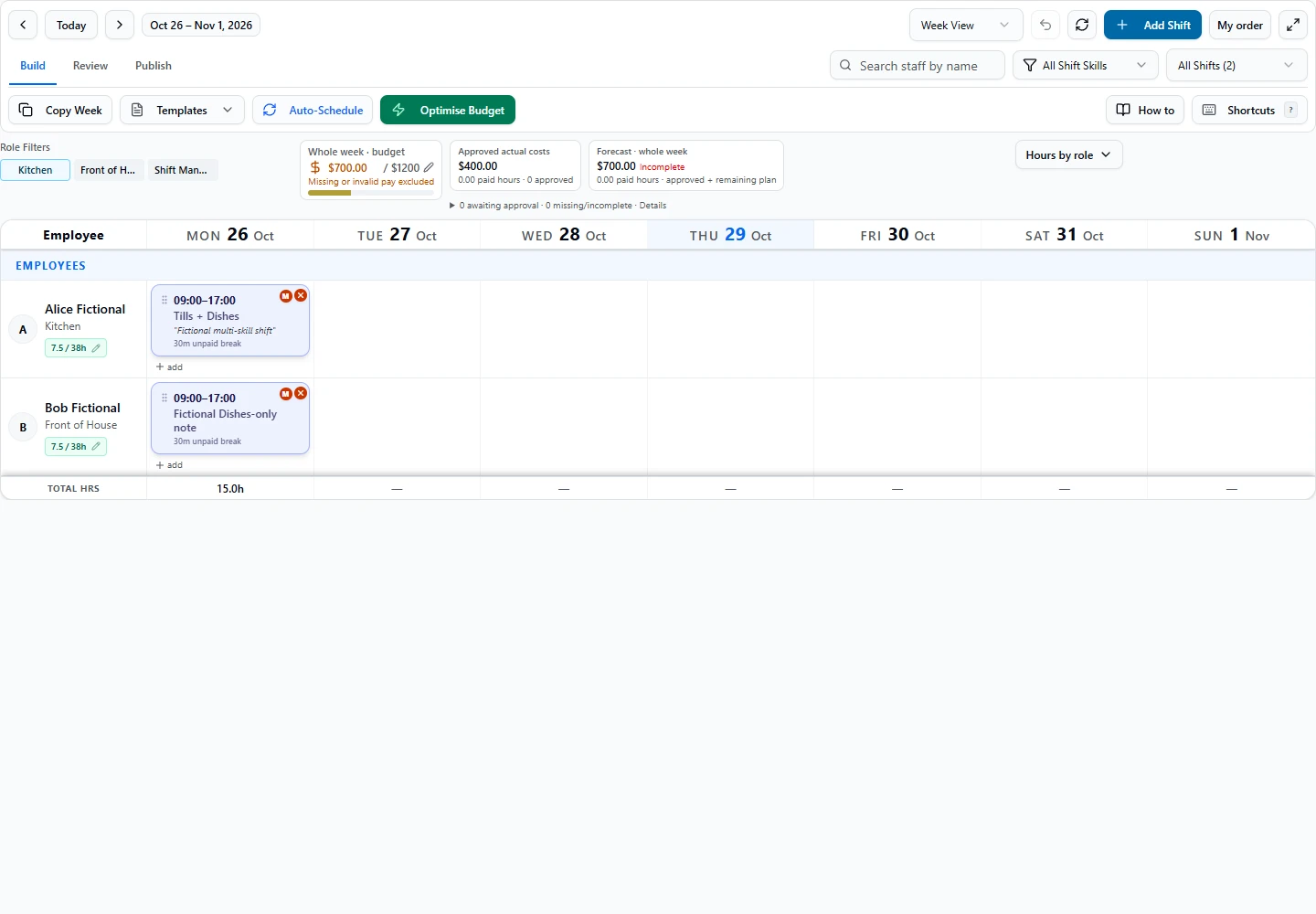
- In Team Roster, the whole-week budget includes fixed salary shares even when no shifts are planned. Filtered and day views use the corresponding visible staff and daily shares.
- In Reports, planned and forecast totals include salary for the selected range. Approved labour includes salary through today without requiring a timesheet approval.
- Recorded and approved attendance hours remain actual hours. A salary does not invent a clock entry, approve a timesheet, change a break or satisfy a shift requirement.
- Salary costs appear separately as Fixed salary in role totals. The employee totals include their salary even when they have no shifts or timesheets.
- If a salary amount or hourly rate is missing or invalid, Team Roster skips that cost and continues adding the valid costs. Desktop and mobile budgets show Missing or invalid pay excluded. This is a partial estimate; excluded staff are not being treated as unpaid.
- Open Team, choose the affected person and complete their Employment pay details. Save the profile and refresh Team Roster to include the corrected cost. A genuine loading failure shows an unavailable estimate with a retry action. If the mobile total loads without its pay-exclusion information, Pay exclusions unavailable means the completeness of the estimate could not be confirmed; retry rather than assuming no pay was excluded.
6. Keep payroll processing separate
Complete pay runs, payslips, super, tax, leave and salary/award reconciliation in your payroll system. Connected hourly-earnings transfers do not send salaries as hourly earnings. Payroll summary files include fixed salary for salaried staff listed in their approved records; Reports also include people without timesheets. Hourly MYOB and Xero files exclude salaried staff. Check the selected workflow and receiving payroll records before importing any file.
To return someone to hourly pay, select Casual, Part-Time or Full-Time, enter or choose their hourly rate and save. The arrangement is scoped to this organisation; another employer's pay is unchanged. Changes are recorded in the profile audit history.
Optional superannuation budget allowance
An Organisation Admin can enable a separate percentage estimate in Settings → Time & pay → Budget. It starts off and initially offers 12%. When enabled, roster and report totals include the allowance on the allocated salary cost, with an included-super line. It does not change the saved salary or payroll. Read the setup and reporting steps.