
Add an optional superannuation allowance to staffing estimates
This core budget setting is available in every industry. It starts off for every organisation. An Organisation Admin or Super Admin with Organisation Settings access can enable it for the selected organisation. Managers can read their authorised roster and report costs; they cannot change this setting.
1. Open the correct organisation and Budget settings
- Check the active organisation in the header before opening Settings.
- Open Settings → Time & pay → Budget. On a phone, choose Budget from the settings selector.
- Wait for the saved settings to load. If loading fails, select Reload saved settings. A loading failure does not mean the setting is off.
2. Enable and choose the percentage
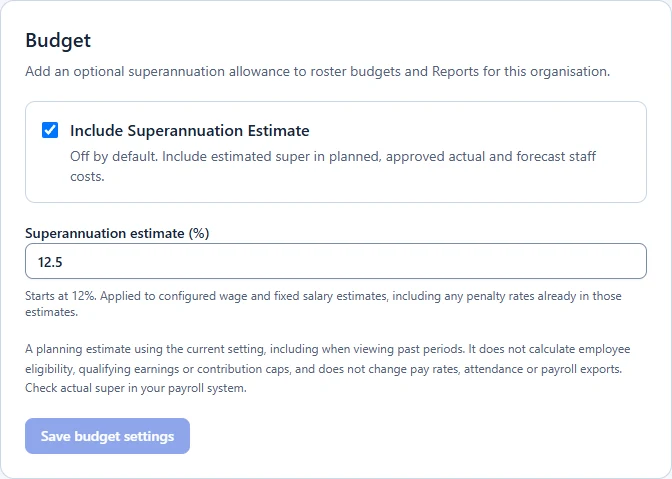
- Tick Include Superannuation Estimate. The percentage field becomes available and initially contains 12%.
- Enter the allowance your organisation wants to budget, from 0 to 100 with up to two decimal places. The screenshot uses a fictional 12.5% example.
- Select Save budget settings and wait for Budget settings saved. This saves only the selected organisation’s allowance; it does not edit anyone’s salary, hourly rate or current shifts.
- If another admin changes the setting or your access changes, saving asks you to reload the saved settings. Review them before reapplying your change. If a request times out, reload to check whether it saved before trying again. Save requests are never automatically repeated.
3. Read the roster totals
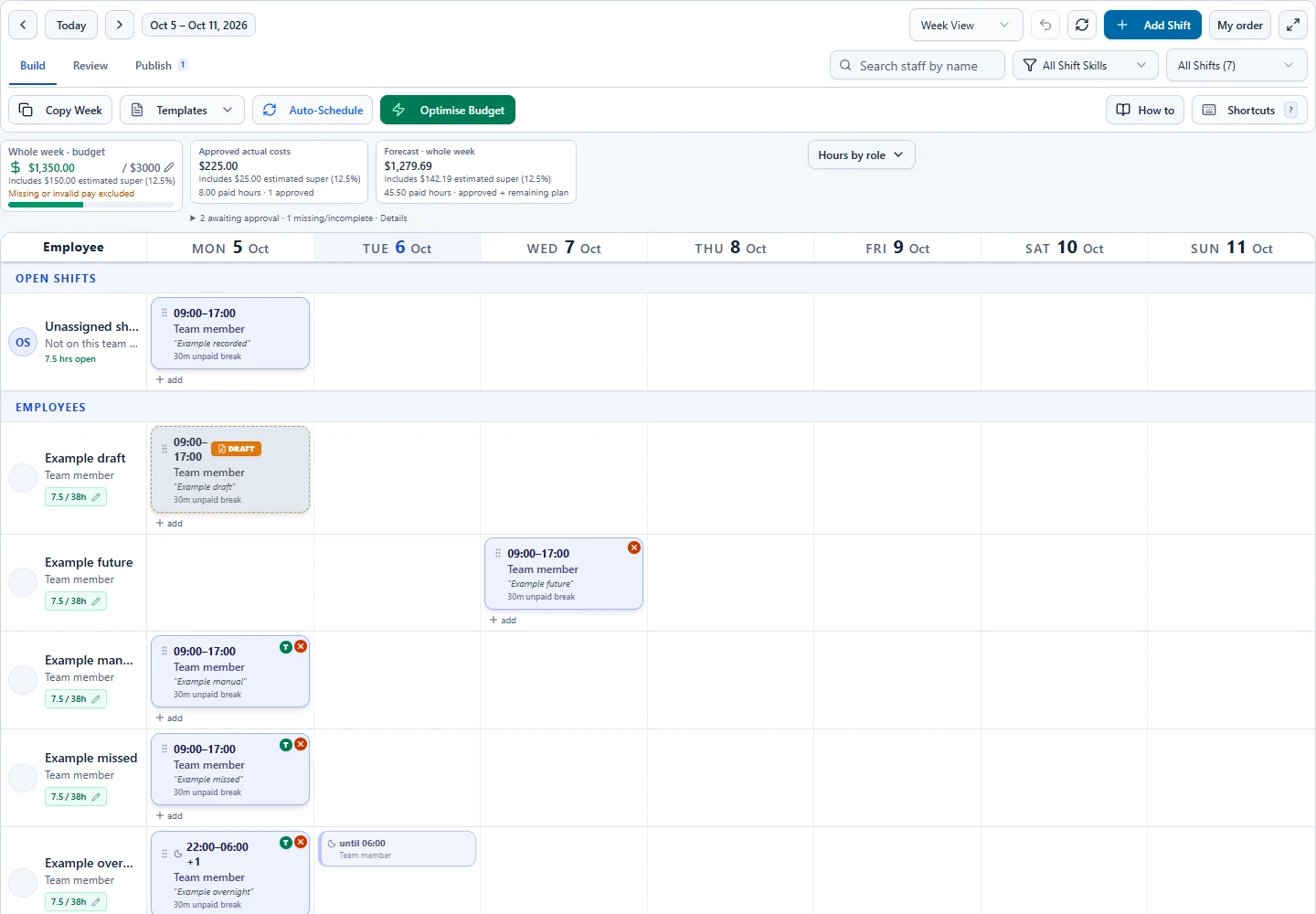
On Manage Roster, Whole week · budget, Approved actual costs and Forecast · whole week include the configured allowance once. A smaller Includes $… estimated super (…%) line shows the super portion already inside each total. Do not add that line again. Visible-shift estimates use the same allowance when filters narrow the roster.
For example, $1,000 of configured wage estimates with a 12% allowance gives a $1,120 budget estimate, including $120 estimated super. Budget-limit comparisons use the inclusive whole-week total. Missing or invalid pay is still excluded and labelled; the allowance does not invent a wage rate.
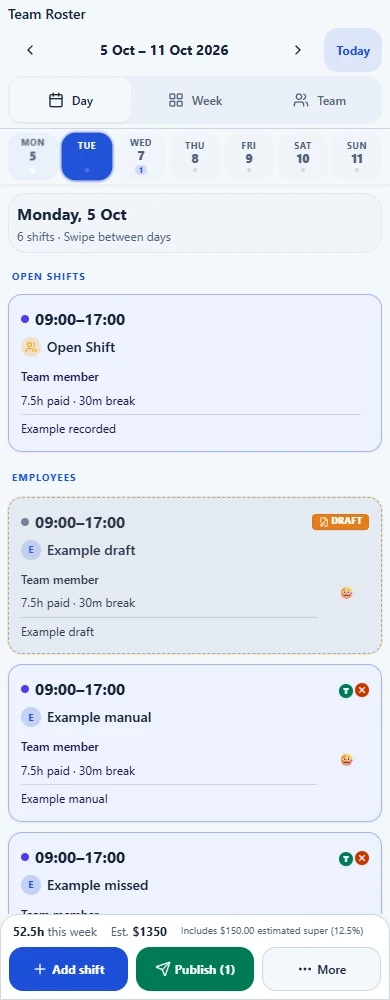
On Mobile Roster, the weekly estimate includes the allowance and shows its included amount. Open More → Approved actual and forecast to see those full-week totals and their included-super lines.
4. Review Reports, CSV and print
- Open Reports and check the organisation, locations and date range.
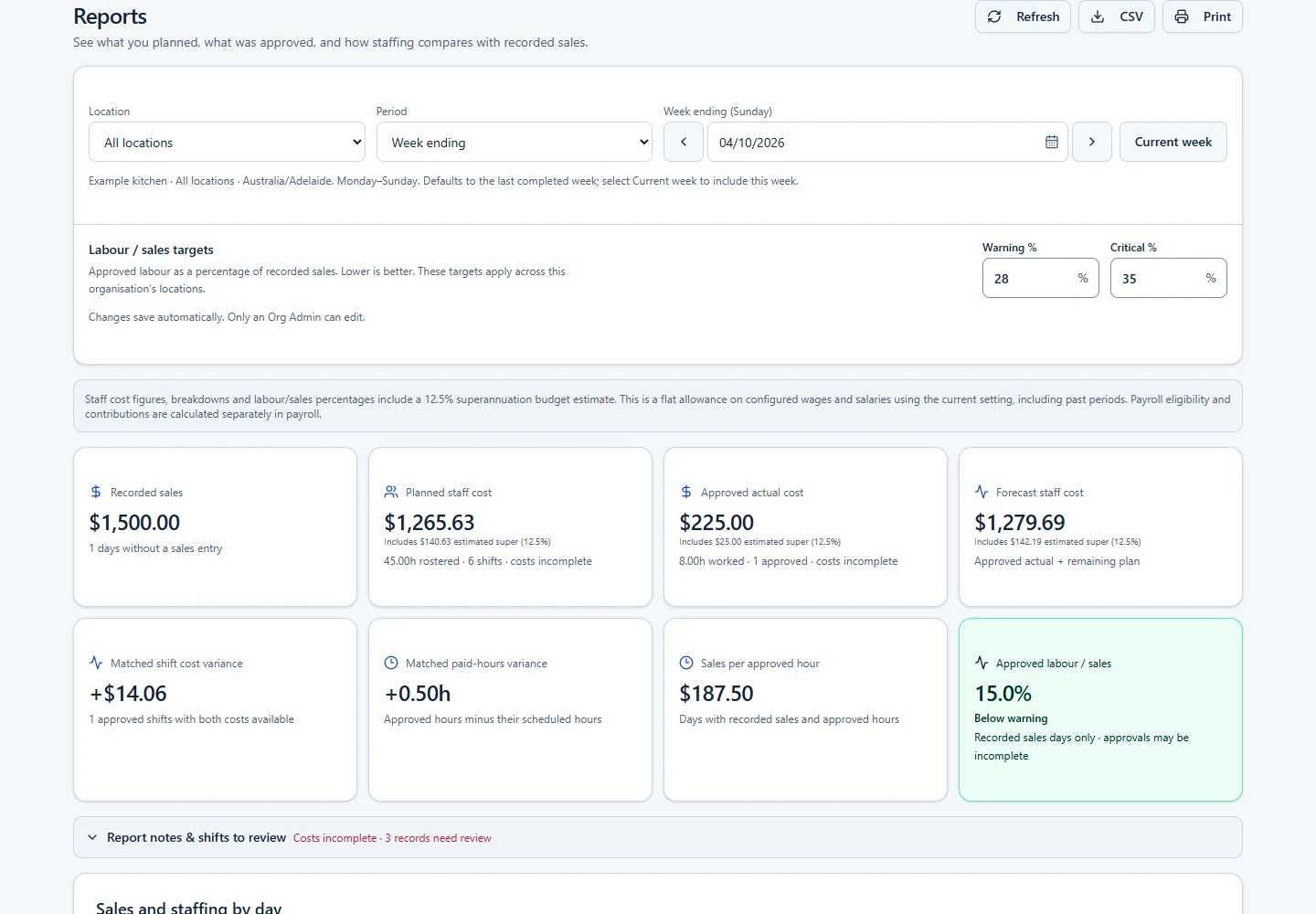
- Planned, approved actual and forecast staffing costs include the allowance. Smaller included-super lines identify the amount in each main cost card.
- Daily figures, staff and role cost breakdowns, matched cost variance and labour/sales percentages use the same inclusive basis. Paid hours, attendance, sales and approvals are unchanged.
- Choose CSV for the report’s daily figures. When enabled, additional columns show whether the allowance is enabled, its percentage and the included planned, approved and forecast super estimates.
- Choose Print, select the required sections and print the report. Its note identifies the included super estimates.
5. Switch it off or change the allowance
Return to Settings → Time & pay → Budget. Change the percentage, or untick Include Superannuation Estimate, then save. Roster costs re-read current settings on return and periodically; refresh an already open report to update its figures. Switching it off restores wage-only estimates and removes the included-super lines. Current settings also apply when viewing past dates; this is not a historical super contribution ledger. Each organisation has independent settings.
Understand the estimate
- The percentage is a flat planning allowance on known configured hourly wage estimates, including their existing penalties, and on fixed salary costs. It does not determine employee eligibility, qualifying earnings, contribution caps or actual statutory super obligations.
- Salaries retain their existing seven-calendar-day basis and equal assigned-location split. Super is added to that allocated salary cost; extra shift hours do not multiply the salary.
- Roster budget optimiser suggestions remain wage-only and explicitly exclude on-costs; their quoted savings are not a super contribution calculation.
- Attendance exports, payroll transfer files, earnings mappings, employee pay rates and actual payroll remain separate. This setting does not send or pay super.
- If costs or settings cannot be verified, use the displayed retry/reload action. Unexpected failures are recorded privately without personal, pay or shift details.
Related: Set salaries and fixed labour costs · Review saved shift history.
Identify the pay details excluded from a roster estimate
Select View details beside the roster cost warning. Review the affected staff, dates, shifts and missing salary settings. Authorised team managers can select a person's linked name to open their profile, save the corrected pay details and return to refresh the roster estimate.