
Connect approved hours to Xero Payroll Australia
The optional Xero Payroll Connection sends approved ShiftRova hours to a draft Xero payroll timesheet. It is available to Managers, Org Admins and Super Admins once enabled. Payroll Officer accounts remain read-only and cannot connect, change mappings or send transfers. Payroll processing, pay rates, payslips, tax, superannuation and STP remain in Xero.
1. Make the connection available
- Ask your Super Admin to enable Xero Payroll Connection in Org Permissions for this organisation. It starts off, including for existing organisations.
- Super Admin may also select it in an Industry Template or accepted business-type setup for future organisations. Template changes never enable existing accounts or replace an explicit OFF choice.
- The platform owner must configure the Xero developer app and its server credentials. A platform-setup message means this has not been completed; no account can connect yet.
- Use a Xero account with access to the Australian organisation and its payroll. Check you have selected the correct ShiftRova organisation before starting.
2. Authorise and choose the payroll organisation
- Open Settings → Integrations and choose Connect Xero.
- Review the requested access on Xero's own consent page and authorise the connection.
- Return to ShiftRova, choose the correct Australian Xero organisation and select Confirm payroll organisation. The first organisation in the list is never chosen automatically.
- Keep the same ShiftRova organisation and browser session selected while completing consent. Consent expires after ten minutes; start again if the connection was cancelled, expired or used already.
A Xero organisation cannot be attached to two ShiftRova organisations. After a destination is established, changing to a different Xero tenant requires support review so existing payroll history remains tied to its original destination.
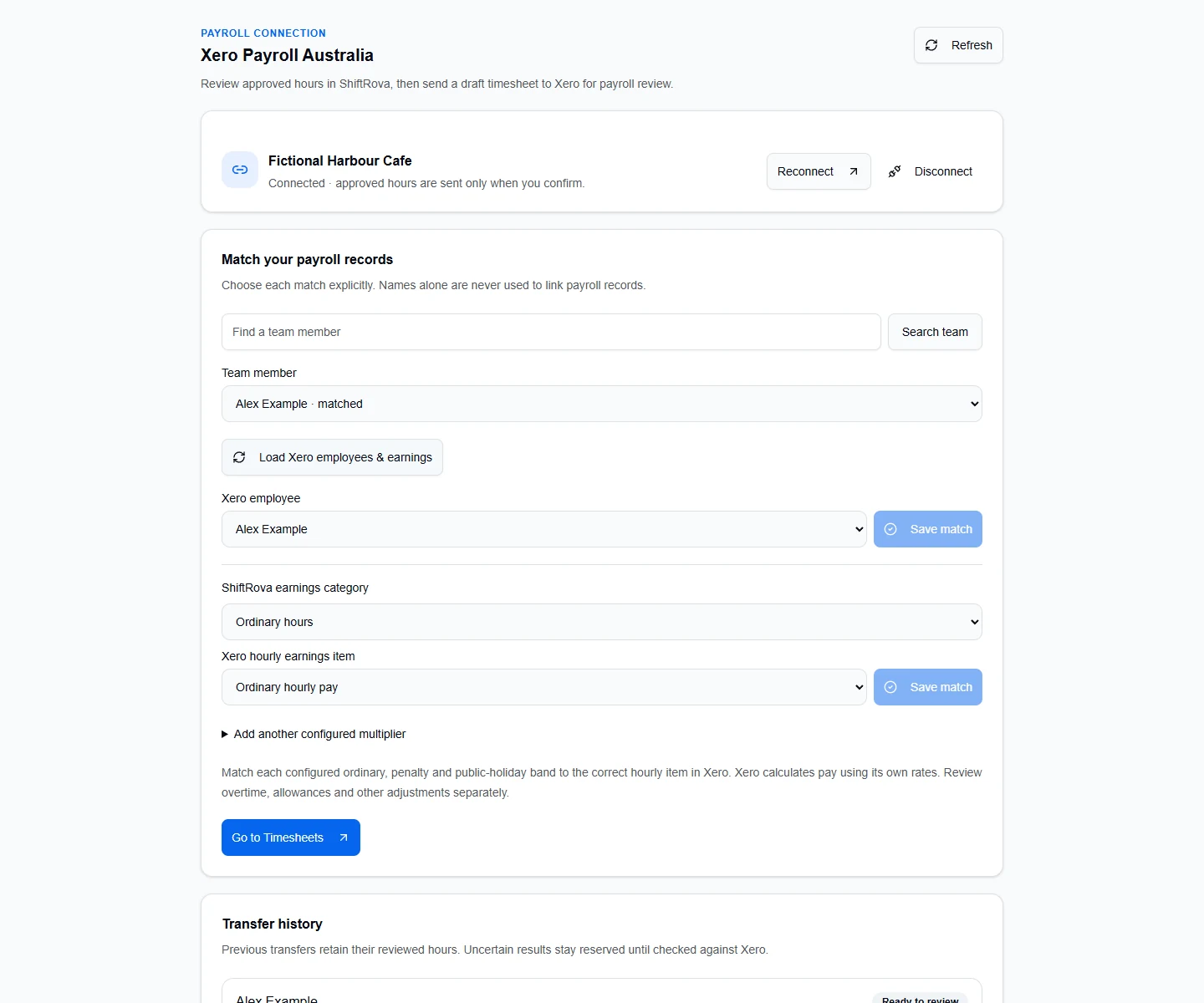
3. Match employees and hourly earnings
- Select Load Xero employees & earnings. Use More Xero employees for the next provider page if offered.
- Find and select a Team member, then choose that person's Xero employee. Verify the identity with your payroll administrator and select Save match. Choosing an option alone does not save it.
- Use ShiftRova earnings category to select Ordinary hours or the configured penalty/public-holiday band. Match it to the correct active Xero hourly earnings item, then select Save match.
- Repeat for every band your organisation uses. A preview lists any missing categories; use Add another configured multiplier for a category key shown there, such as penalty:1.6. Never assume matching names mean matching pay calculations.
- Use Reset to discard an edited match. Navigation warns about unsaved matching changes. Another manager's changes require refreshing before saving.
Xero must have an active employee with a supported payroll calendar. This release supports weekly, fortnightly, four-weekly and monthly calendars. Unsupported calendars use the existing reviewed payroll files. Xero owns the actual earnings rates. Configured bands are not an automatic determination of overtime, allowances or award compliance.
4. Preview the complete employee pay period
- Review and approve the employee's timesheets in ShiftRova. Resolve incomplete clock records, overlapping work, invalid breaks and pending timesheets first.
- From Timesheets, select Send to payroll. Choose the employee and A day in the pay period, then select Preview approved hours.
- Check the displayed Xero organisation, employee, complete pay-period dates, dates worked, hours and earnings items. The Xero employee's payroll calendar determines the period; the current Timesheets list page, search and location filters do not limit it.
- Managers must have current location access to every included record. If the employee worked elsewhere or has unscheduled records without a location, an organisation administrator must transfer the complete period.
- Recorded breaks are removed at their actual times when they match the approved break total. If that total was edited or no timed breaks exist, the total is deducted once from the finish, following the existing export convention. Work is split at the organisation's local midnight, including daylight-saving transitions, before configured earnings bands are calculated. Review the resulting category lines before confirming.
- An overnight shift spanning two pay periods contributes only its dated hours to each period. After reserving or transferring the first portion, keep the original times, breaks, worker, location and organisation timezone unchanged; a correction requires payroll review before transferring the remaining portion.
- If a category needs matching, return to Integrations, save the match and create a new preview. A saved preview reserves its dated source hours; use Cancel preview when abandoning it.
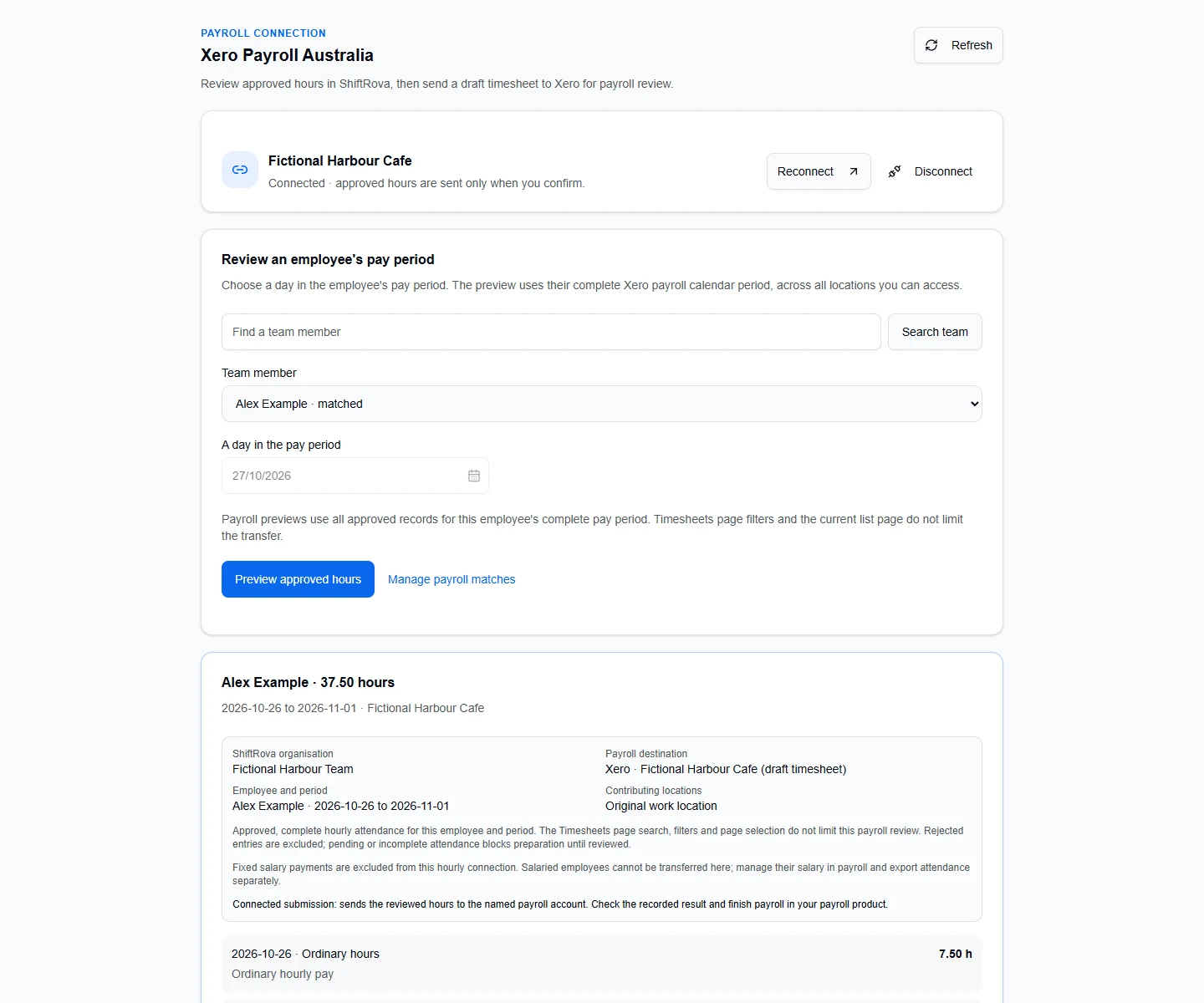
5. Confirm the draft transfer
- Select Review & send to Xero, recheck the employee, destination and period, then choose Send draft timesheet.
- ShiftRova rechecks your current access, employee mapping, source hours and connection. Source edits or mapping changes invalidate the preview; cancel it and review a fresh one.
- Check Transfer history for Confirmed in Xero. Open Xero to review the draft timesheet before processing payroll there.
- Repeat for the next employee. This release transfers one employee's complete period at a time and supports up to 80 source timesheets and 200 earnings lines in a period of up to 35 days.
Previews expire after fifteen minutes. Existing or later Xero timesheets block a new transfer; ShiftRova does not overwrite them or insert historical periods before them. Hours already reserved or transferred cannot be included again through a new preview.
6. Handle interrupted or rejected transfers
- Ready to review: use Review preview to reopen the exact saved hours, or cancel it before making a new preview.
- Not accepted: review the connection, employee, calendar and earnings categories in Xero. Cancel the rejected transfer, correct the cause and create a fresh preview.
- Checking transfer or Needs checking: wait at least 45 seconds, then select Check result. This reads Xero and confirms a single exact matching timesheet without sending the hours again.
- If no exact result is confirmed, leave the hours reserved and ask your payroll administrator to investigate the original Xero record. Do not create another transfer or manually import the same hours until the outcome is established.
- Changing source hours after a successful transfer does not update Xero or rewrite transfer history. Review any correction through your payroll process.
7. Disconnect, disable or recover history
- Use Disconnect in Integrations to stop new transfers while keeping matches and history. If remote revocation could not be confirmed, also remove ShiftRova from Connected Apps in Xero.
- Turning the Super Admin feature OFF removes integration access immediately and retains history. Re-enabling does not automatically send anything.
- Organisation backups retain transfer and audit history, without account credentials, live connections, mappings or replayable reservations. Recovered history cannot send payroll and blocks reuse of its recorded source hours pending payroll review.
- The existing Export files remain available as a separate reviewed workflow. Avoid using both a direct transfer and a file for the same payroll hours.
Related: Approving timesheets · Feature access and industry setup · Xero connection overview.