 Square
What is available today
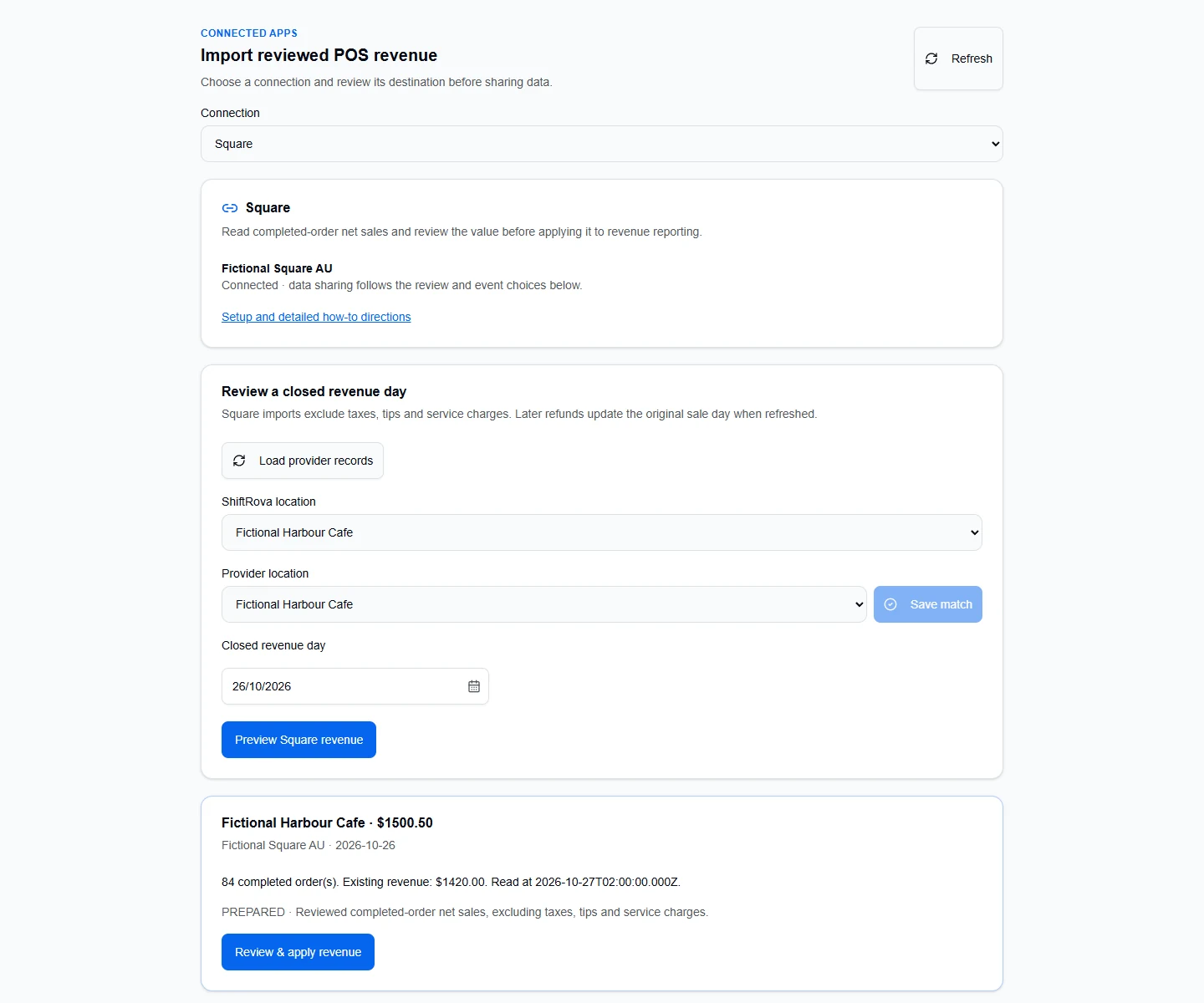
The optional Square Revenue Connection starts OFF and requires Super Admin availability, platform credentials, account consent and explicitly matched Australian AUD locations with the same organisation timezone. Managers and above preview completed-order net revenue excluding taxes, tips and service charges, then confirm applying it to Reports. Later refunds restate the original sales day when refreshed. Existing revenue is replaced only after explicit confirmation; partial provider reads and concurrent edits block the import. Square orders, payments and payroll are read-only.
- Read-only Australian Square OAuth and explicit location matching
- Closed-day review of up to 1,000 completed orders
- Confirmed revenue application with conflict protection and history
Set up a reviewed Square workflow
Square supplies reviewed sales revenue for the Reports workflow. It is a read-only POS connection: it does not create orders, take payments or send payroll. Matching a closed trading day with the relevant location gives managers a clearer basis for comparing revenue with labour estimates, while keeping an explicit review before saved revenue changes.
1. Confirm the supported locations
The capability must be available and the platform connection configured. Use an authorised Australian Square account and AUD locations with the same organisation timezone. Check the location you are comparing with staff costs; combining different businesses, currencies or trading-day definitions can produce a misleading labour percentage.
2. Connect and explicitly match sites
Open Settings → Integrations and complete Square account consent. Match each supported Square location to the intended ShiftRova location. An organisation administrator or Manager needs current access to the relevant settings and original location. Connecting an account does not automatically populate or overwrite all historical Reports revenue.
3. Preview a completed trading day
Choose a closed day and review completed-order net sales, excluding tax, tips and service charges. The read is limited to 1,000 completed orders. An incomplete provider response blocks the import instead of quietly saving a partial total. Check the dates, matched location and source total before comparing the figure with planned wages.
4. Confirm how revenue is applied
Explicitly confirm applying the reviewed result to Reports. Existing revenue requires a deliberate replacement decision, and concurrent edits can block the change. Later refunds can restate the original sales day when refreshed, so retain the result history and explain any changed comparison rather than assuming the initial total can never change.
Before you confirm
- Australian AUD account and same-timezone location mapping
- Closed date and completed-order net revenue
- Excluded taxes, tips and service charges
- Existing saved revenue, replacement choice and retained result
Square orders, payments and payroll stay read-only. This workflow is not live demand forecasting, accounting reconciliation or an automatic adjustment of staffing levels. Managers interpret the revenue and labour figures. Disabling access stops new imports while retained history remains available according to the organisation’s permissions.
Read the Square setup and review guide