
Use reviewed Square revenue in Reports
The optional Square Revenue Connection reads Australian Square merchant/location/orders data. It does not change orders, payments or payroll in Square. Available industries are Hospitality, Retail, Beauty & Wellness, Events & Entertainment, Sport & Recreation, Automotive, Professional Services and Other.
1. Connect and match a location
- Ask Super Admin to enable Square Revenue Connection for the organisation. The platform owner must register and configure the Square OAuth app first.
- Open Settings → Integrations → Square → Connect Square. Authorise on Square's own consent page and return to the same ShiftRova organisation/browser.
- Choose the Australian merchant and Confirm connected organisation. Consent expires after ten minutes.
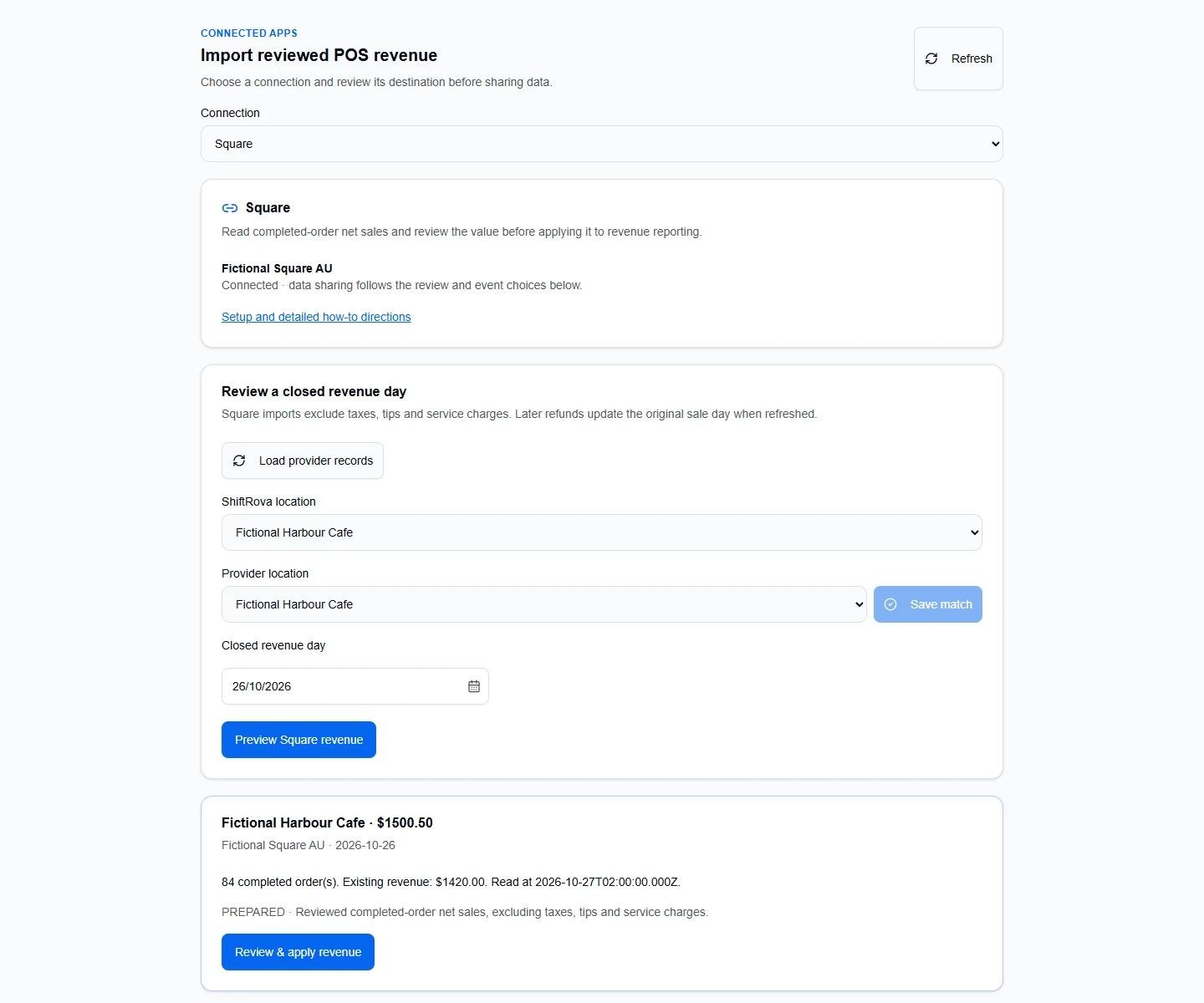
- Select Load provider records, choose a ShiftRova location and its correct Provider location, then Save match. A Square location cannot be matched to two ShiftRova locations.
- Both sides must use the same organisation timezone and the Square location must be active, Australian and AUD. Resolve a timezone mismatch before importing a day.
2. Preview a closed day
- Open Reports → Import POS revenue, or use the Square screen in Integrations.
- Choose the matched location and a Closed revenue day before today, using the organisation's calendar.
- Select Preview Square revenue. Review the merchant, location, date, completed-order count, proposed amount and any existing revenue value.
- The amount uses completed orders after discounts/returns, excluding tax, tips and service charges. Refunds recorded later restate the original sales day when that day is refreshed. It is not a bank settlement or a guarantee that it matches every differently configured Square report.
- Up to 1,000 completed orders are read per day. Invalid currency, missing money values, incomplete pages or repeated pagination stop the import; no partial amount is applied.
3. Apply the reviewed amount
- Select Review & apply revenue and check the location, date and proposed value.
- If revenue already exists, explicitly select Replace the existing revenue value. Manual entries are never silently overwritten.
- Select Apply reviewed revenue. If another user changed the value after the preview, the update is blocked; refresh and review a new preview.
- Refresh Reports to load the updated revenue and labour-percentage calculations. Refresh the original day again later if its completed orders have received refunds.
- Use Connection history → Review saved result to inspect the retained import. Previews expire after fifteen minutes and the same preview can only be applied once.
Related: Connected apps overview · Approving timesheets · Feature access and industry setup.