
Prepare payroll with connected MYOB matching
This optional connection supports Australian MYOB Business/AccountRight online company files with the required API and payroll access. It verifies matches against the connected account and prepares a reviewed timesheet import file. MYOB's timesheet update API replaces a selected date range, so this release uses the existing import workflow to protect existing entries. It does not process payroll, change pay rates or confirm a file was imported.
1. Connect the company file
- Ask Super Admin to enable MYOB Payroll Connection for the organisation. Platform setup must include the MYOB developer app.
- Open Settings → Integrations, select MYOB, then Connect MYOB.
- Sign in and authorise on MYOB's own consent page. Return to the same ShiftRova organisation and browser session.
- Choose and Confirm connected organisation. If MYOB requires a separate company-file login, open Company-file login, if required. These are company-file credentials; the my.MYOB account login remains on MYOB's consent page.
- Consent expires after ten minutes. Start again after a cancellation, expiry or organisation switch. Changing to a different company file after history exists requires support review.
2. Match employees and hourly wages
- Select Load provider records. Use More provider employees to load another page.
- Find the Team member, choose the correct Provider employee, check the displayed employee Card ID and select Save match.
- Select each ShiftRova earnings category, choose its Provider hourly category and save explicitly. Salary categories are excluded.
- For configured penalty or public-holiday bands, use Add a configured earnings category with the key requested by payroll, such as penalty:1.5. Review the meaning and receiving wage category with your payroll administrator.
- Choosing a dropdown option does not save it. Use Reset to discard a changed match; navigation asks you to save, discard or stay.
3. Review the complete approved period
- Approve and review the employee's timesheets first. Resolve unfinished records, overlapping work and invalid breaks.
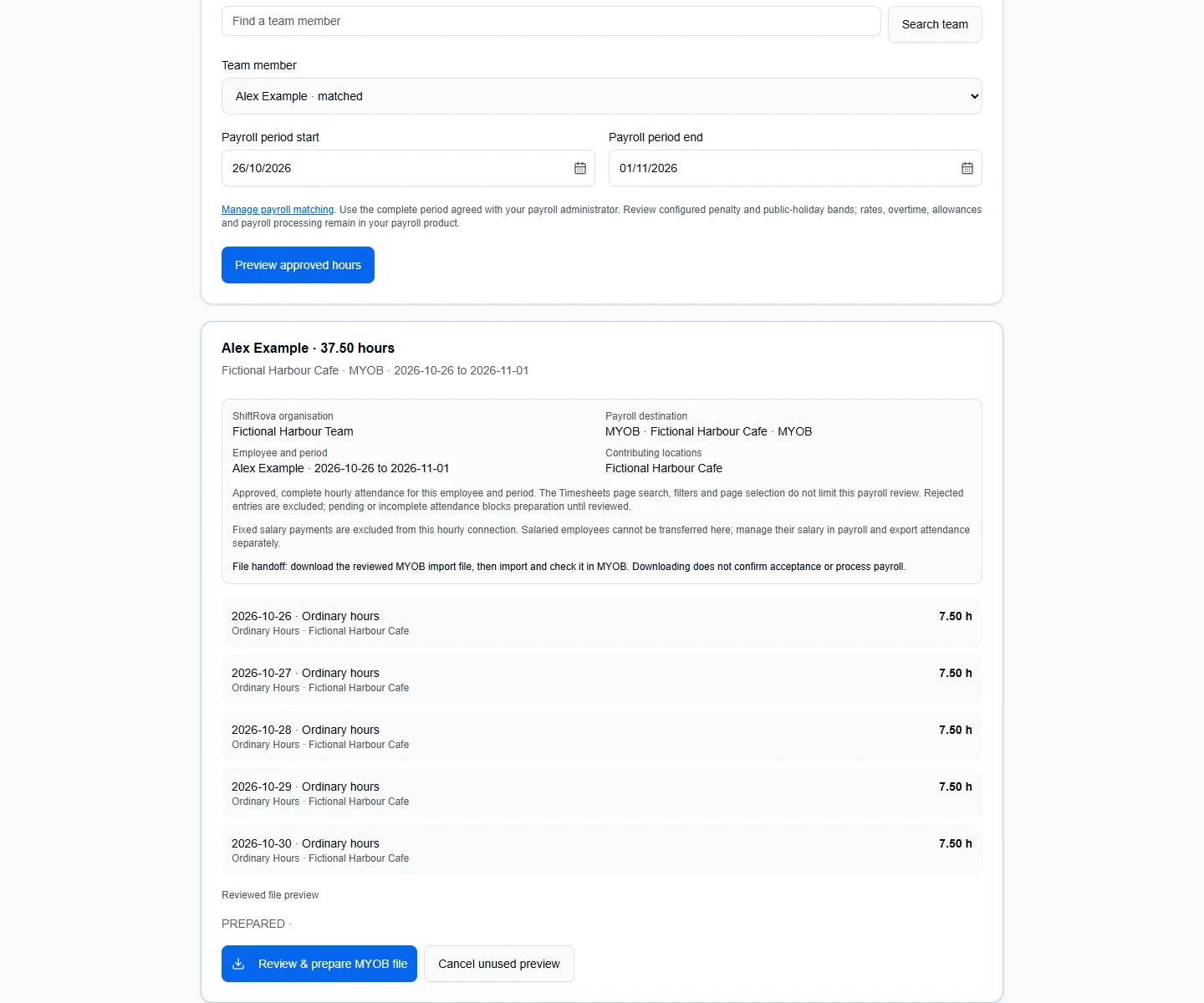
- Open Timesheets → Send to payroll → MYOB. Select the employee and the complete Payroll period start and Payroll period end agreed with the bookkeeper.
- Select Preview approved hours. All approved records in that range are checked; the current Timesheets list filters and page do not limit the preview.
- Review dates, hours, hourly category labels and the connected destination. Overnight work is split at organisation midnight and period boundaries. Recorded breaks use their actual intervals when they match the approved total; edited/untimed totals follow the existing finish-deduction convention.
- A preview supports up to 80 source timesheets, 200 category lines and 35 days. It expires after fifteen minutes. Use Cancel unused preview before abandoning an unexported preview.
4. Prepare and import the file once
- Select Review & prepare MYOB file, confirm the company file and reviewed hours, then Prepare import file.
- Keep the downloaded tab-delimited TXT file. It includes the connected employee Card ID and receiving wage-category names.
- In the compatible MYOB product, open its timesheet import workflow and map the file fields. Check the import preview, dates, decimal hours and categories before accepting.
- Review MYOB's import results and the resulting timesheet entries before processing payroll. The ShiftRova status EXPORTED means a file was prepared, not that MYOB accepted it.
- Re-downloading is the same reserved file, not a new payroll period. Never import it twice. Exported hours remain reserved across connected payroll providers; if the file was not imported or the result is unclear, ask your payroll administrator/support to establish the outcome.
Related: Connected apps overview · Approving timesheets · Feature access and industry setup.