
Send selected operational events to your workflow
Managers, Org Admins and Super Admins can configure the organisation's own Zapier or Make webhook once Zapier & Make Connections is enabled. This uses Webhooks by Zapier or Make Custom Webhooks; it is not a published native marketplace app.
1. Create the receiving workflow
- In Zapier, create a Zap using Webhooks by Zapier → Catch Hook and copy its webhook URL. Use Catch Raw Hook if your workflow needs the original request headers for signature verification.
- In Make, create a scenario with Webhooks → Custom webhook and copy its HTTPS URL.
- Use your own organisation's workflow. Supported hosts are hooks.zapier.com and Make's hook.eu1.make.com, hook.eu2.make.com, hook.us1.make.com or hook.us2.make.com. Arbitrary hosts, query credentials and redirects are not accepted.
- Check the provider's plan and activate its listening workflow. The external workflow determines what happens after an event arrives.
2. Save your event choices
- Ask Super Admin to enable Zapier & Make Connections, then open Settings → Integrations → Zapier or Make.
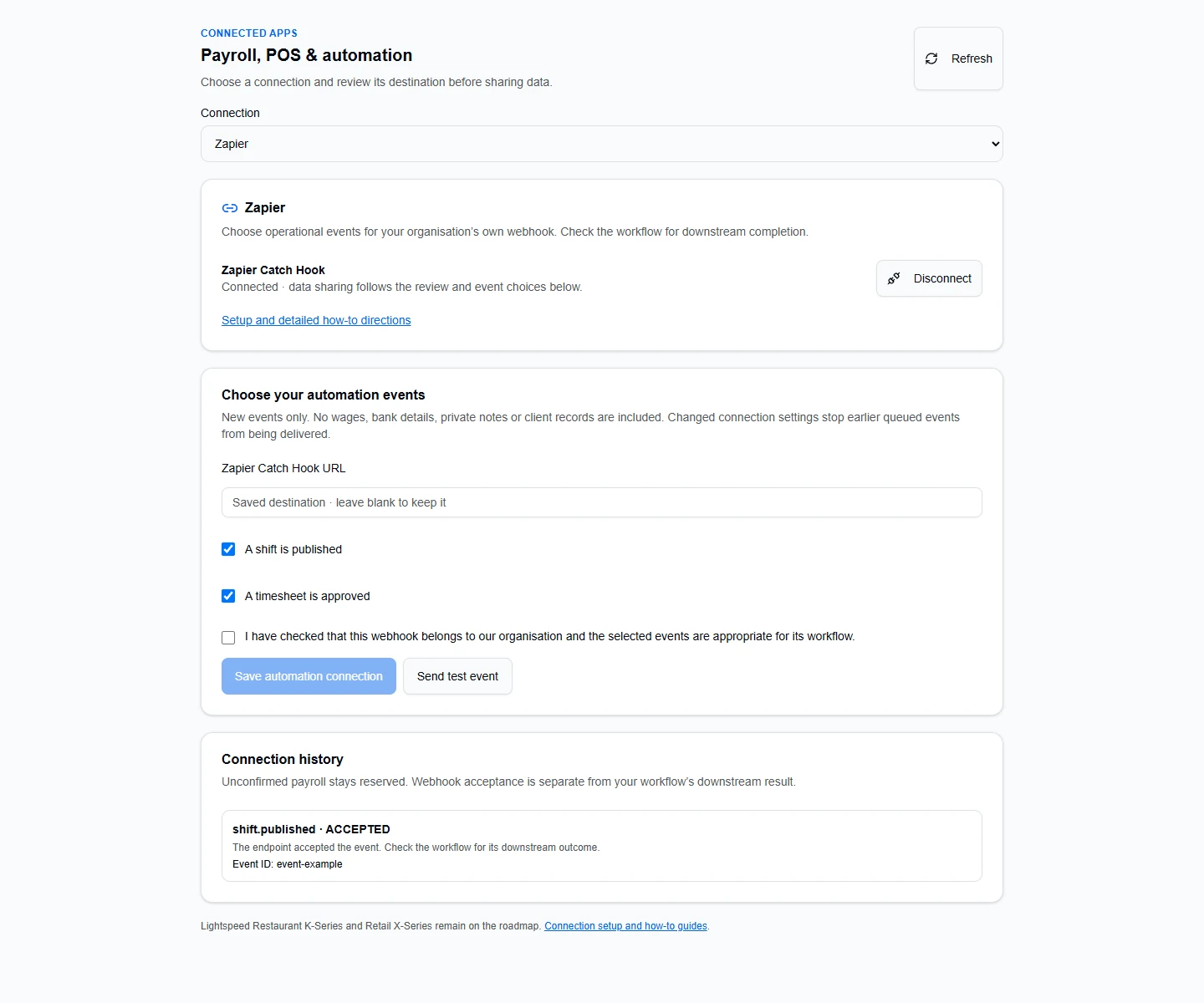
- Paste the webhook URL and select the required events: A shift is published and/or A timesheet is approved.
- Confirm the webhook belongs to your organisation and the selected events are appropriate, then select Save automation connection.
- Copy the signing secret when first shown and keep it securely in your workflow. It is not included in events, normal reads or backups.
- The destination field clears after saving. Leave it blank to keep the saved destination when changing event choices. Choosing no events stops automatic event capture for that connection.
3. Test and build the workflow
- Select Send test event, then inspect your provider's captured event. The test contains an organisation identifier and test marker, not staff payroll data.
- Use the stable eventId as your workflow's duplicate-protection key before creating downstream tasks or records.
- Where signature verification is used, validate X-ShiftRova-Signature as HMAC-SHA256 over timestamp + "." + the exact raw JSON body, using your signing secret. The timestamp is in X-ShiftRova-Timestamp. Reject stale or repeated events according to your workflow's policy.
- Publish a genuine shift or approve a genuine complete timesheet to capture a new operational event. Existing history is not replayed when you connect.
- Events contain source IDs, organisation/location/staff IDs and source timestamps; timesheet approval also includes the approved break total. They exclude wage rates, bank/tax details, private notes, attachments and client records.
4. Review delivery and changed access
- Background delivery runs in bounded batches. The connection owner's current membership, role, industry, feature/page permissions and original location access are checked before sending.
- ACCEPTED means the webhook endpoint accepted the request. Check the Zap/scenario for downstream completion; a successful response alone does not establish that every action ran.
- REJECTED or UNKNOWN needs review in the original workflow using its event ID. Interrupted events are not automatically resent, which avoids blindly duplicating downstream actions.
- A changed/withdrawn source, owner access or destination can result in SKIPPED. Re-saving a connection changes its revision and stops earlier queued events for that previous configuration.
- Super Admin OFF stops delivery; disconnecting stops the local connection. Recovery retains history marked RECOVERED and never restores a sendable subscription or queued event.
Related: Connected apps overview · Approving timesheets · Feature access and industry setup.