
Choose the right handover for reviewed work
Managers and Organisation Admins with the required page access can review timesheets and prepare a handover. Optional payroll connections require separate activation and account consent. Payroll Officers remain read-only. A downloaded attendance CSV does not submit or process payroll.
1. Check the organisation and period
- Open Timesheets in the intended organisation.
- Set the dates, member, location, search and status filters. Review and approve completed actual work first.
- Resolve missed or incomplete clock records. Keep rostered hours, recorded attendance and fixed salary budgets distinct.
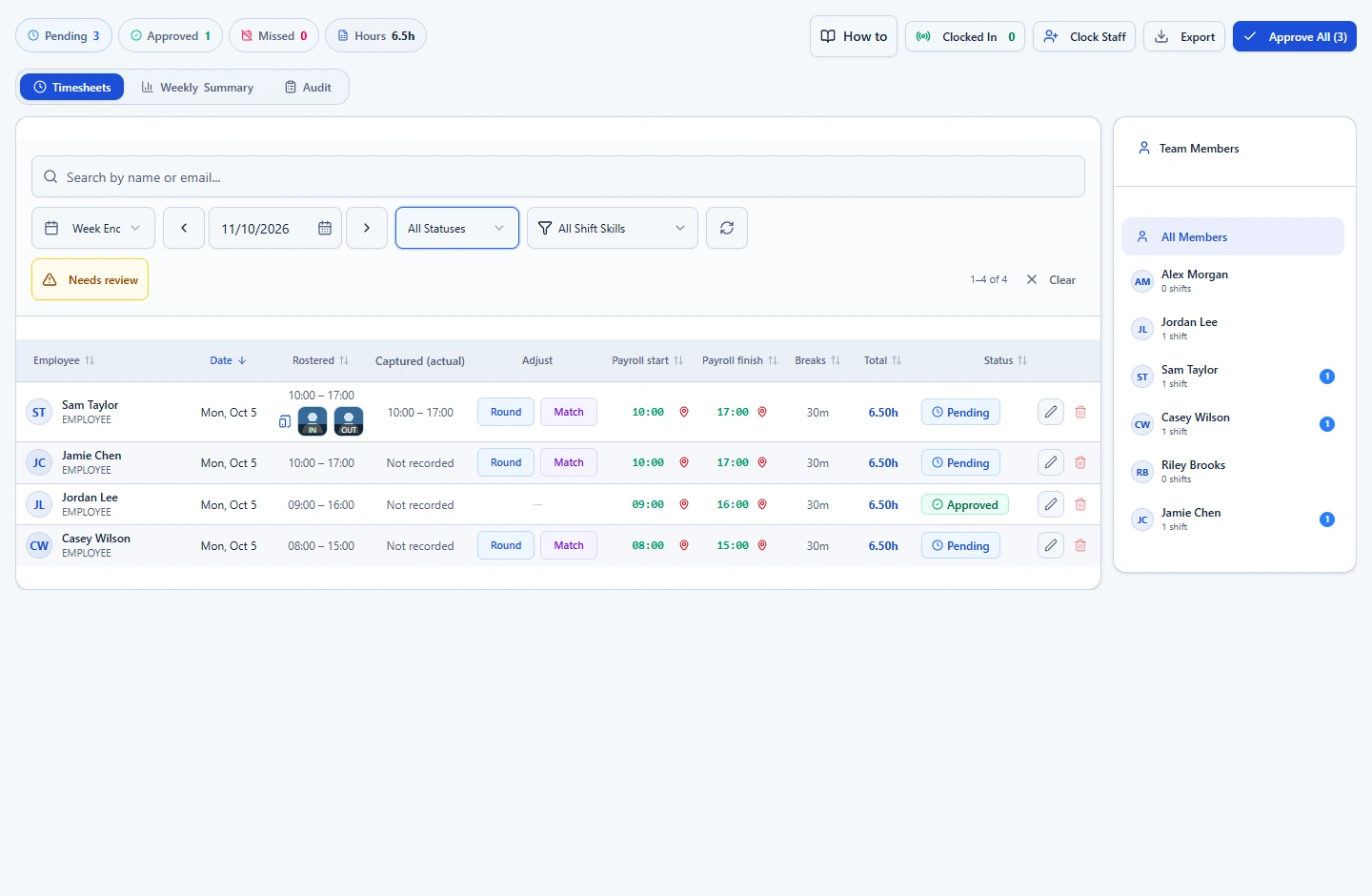
On desktop, the compact table shows Rostered, Captured (actual) and payroll times in separate columns. Search by name or email to filter both the timesheets and the Team Members sidebar. Scroll the table sideways on smaller desktop screens to reach the remaining columns.
2. Download an attendance CSV when you need the displayed records
- Choose Export to open Export Timesheets.
- Read the organisation, selected dates and current-page status counts. Current filters and search apply; this export contains the displayed page rather than every page in the period.
- Choose only the columns required, then download the CSV. Review the file before passing it to the recipient.
- The CSV may include approved, pending, rejected or missed rows shown on that page. It is an attendance file, not confirmation that those hours were sent to payroll.
3. Use an activated payroll connection for provider work
- Open Payroll connections where available and choose the configured provider.
- Check the organisation, selected employee and complete pay period, contributing locations, earnings mappings and approved-hour scope in the review. Payroll connection reviews ignore the Timesheets list filters and use complete approved hourly work for that employee and period. Read salary exclusions and any warnings before confirming.
- Confirm whether the action prepares an import file or sends a connected transfer. MYOB import files, Xero draft timesheets and Employment Hero Payroll submissions have different destinations and review steps.
- Keep the returned result or file and reconcile it with the receiving payroll account. If a connected result is unknown or pending, use the connection’s result/recovery flow before trying again; do not create a duplicate submission.
4. Handle salaries in payroll
Fixed salaries contribute to configured roster and report costs. They are not exported as hourly earnings by the hourly payroll connections. Attendance CSV files retain salary attendance rows with a blank hourly gross-pay estimate. Review salary payments, tax, super, leave, payslips and the pay run directly in your payroll product.
Related: Approve reviewed timesheets · Check roster changes.