
Connect Australian Employment Hero Payroll
This feature connects to Employment Hero Payroll Australia, also known as KeyPay. It is separate from the Employment Hero HR service. It submits reviewed hourly timesheet lines; it does not create employees, change pay rates, process pay runs, issue payslips or lodge STP.
1. Choose the payroll business
- Ask Super Admin to enable Employment Hero Payroll Connection for this organisation.
- In Employment Hero Payroll, open your name menu → My Account → Generate API Key. Use an authorised payroll account and store the key securely; changing it may affect other apps that use the old key.
- In ShiftRova, open Settings → Integrations → Employment Hero Payroll. Paste the key into Employment Hero Payroll API key and select Load payroll businesses.
- Choose the correct Australian business and select Confirm connected organisation. The key field clears after the request and credentials never appear in history or backups.
- Complete selection in the same organisation/browser within ten minutes. The business selector supports keys with access to 1–100 businesses.
2. Save employee, category and location matches
- Select Load provider records, then find the Team member. Choose their Provider employee and select Save match.
- For every configured ordinary, penalty and public-holiday band, choose the Provider hourly category and save it. Fixed/annual categories are excluded. Add a configured category key when required by the preview.
- Select each ShiftRova location and its correct Provider location, then save. Every location contributing hours needs a match; unlinked actual work needs a location before direct submission.
- Review pay-category meanings with your payroll administrator. These are configured hourly bands; this connection does not independently determine overtime, allowances, award interpretation or payroll compliance.
3. Preview the approved period
- Review and approve the source timesheets, including breaks and overnight work.
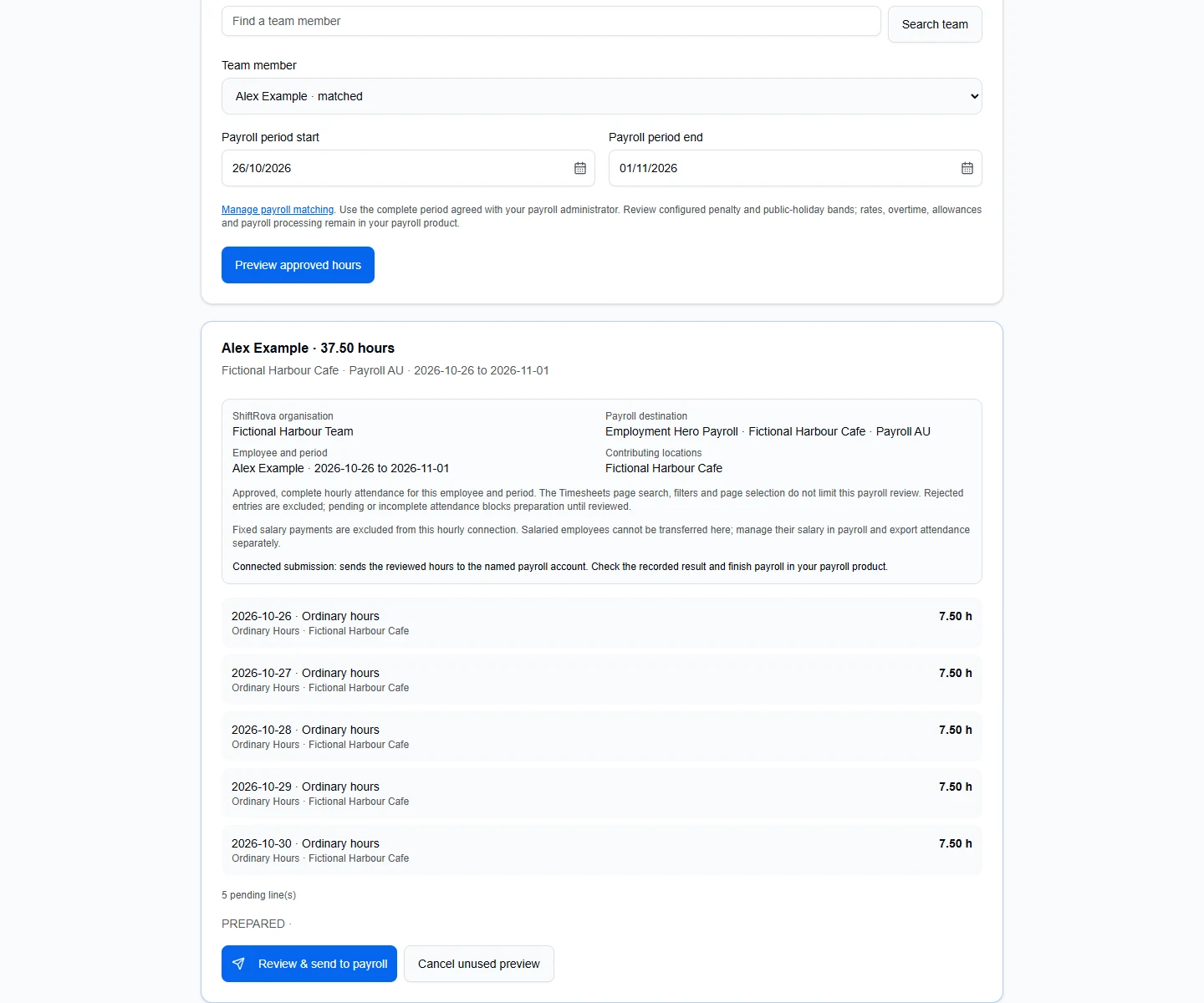
- Open Timesheets → Send to payroll → Employment Hero Payroll. Select the employee and complete payroll date range, then Preview approved hours.
- Check the payroll business, employee, dates, category hours and original work locations. The preview includes the full selected range across locations, not only the Timesheets list page or filters.
- Resolve missing matches, incomplete work, overlaps or unavailable locations. An organisation administrator must handle work outside a manager's location access.
- Preview limits are 80 source timesheets, 200 category lines and 35 days. An unused initial preview expires after fifteen minutes. Editing the original source or connection matching invalidates further submission.
4. Submit reviewed lines
- Select Review & send to payroll, recheck the destination and hours, then Send reviewed hours.
- Up to three pending category/date/location lines are submitted per confirmation. If the result is PARTIAL, review the recorded counts and select Continue reviewed transfer for the remaining pending lines.
- Each line has its own stable external ID and provider uniqueness enforcement. Confirmed lines are never sent again as part of continuing the preview.
- When every line is confirmed, the transfer shows SENT. Open Employment Hero Payroll to review the submitted timesheets and finish approval/payroll there. A confirmed submission is not a completed pay run.
5. Resolve an interrupted result
- For SENDING or UNKNOWN, wait at least 45 seconds and choose Check payroll result.
- This reads the provider using the original external IDs and compares the exact employee, date, location, category and hours. It does not resend the uncertain lines.
- If no exact result is confirmed, leave the source hours reserved and ask your payroll administrator to inspect the original provider records. Do not import the same hours through another connection or file.
- Use Cancel unused preview only before any line has been sent or has an uncertain result. Partial/sent history and recovered history cannot be cancelled to replay payroll.
Related: Connected apps overview · Approving timesheets · Feature access and industry setup.